# App
# How to Download the CCS App
**This article will show how to download the Caledonia Community Schools app.**
iOS
1\. Go to App Store.
2\. Search for "Caledonia Community Schools".
3\. Click "Get".
Android
1\. Go to Google Play Store.
2\. Search for "Caledonia Community Schools".
3\. Click "Install".
# How to Add Schools to Your CCS App
**This article will show you how to add schools to your subscribed list on the Caledonia Community Schools app.**
1\. Go to the Caledonia Community Schools app.
2\. If you are not already signed in, click "Sign In" and sign in.
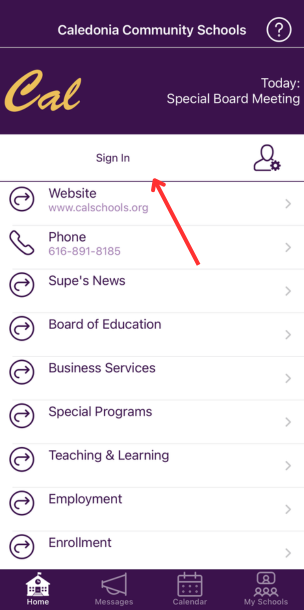
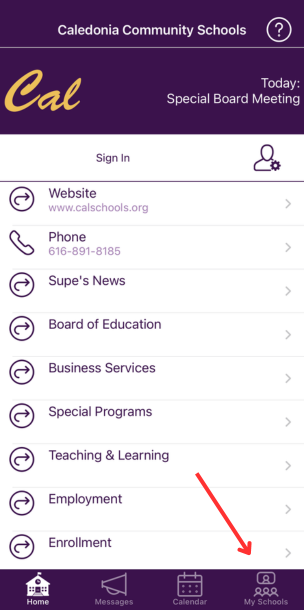
3\. Click on "Schools".
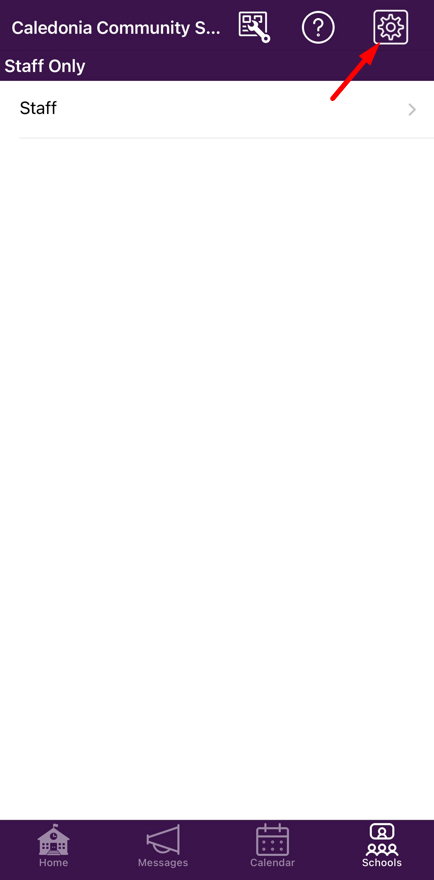
4\. Click the Gear icon.
[](https://ccskb.calschools.org/uploads/images/gallery/2022-11/image-1667571987643.png)
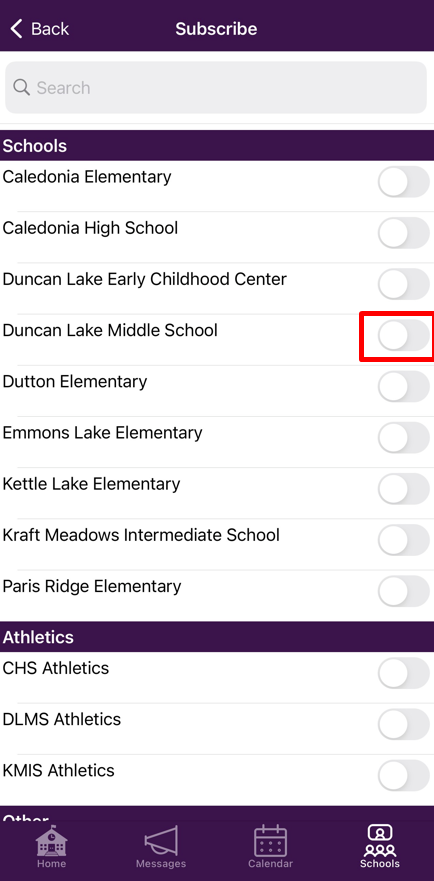
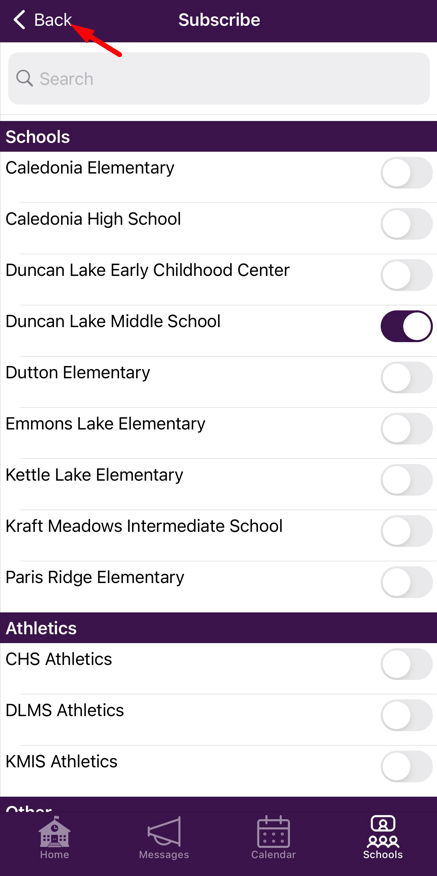
5\. Click the button next to the school you want to add.
[](https://ccskb.calschools.org/uploads/images/gallery/2022-11/image-1667572038484.png)
6\. Click the Back button to go back to the menu.
[](https://ccskb.calschools.org/uploads/images/gallery/2022-11/image-1667572090242.png)# How to Edit Push Notification Settings on the CCS App
**This article will show how to edit your push notification settings on the Caledonia Community Schools app.**
1\. Go to the Caledonia Community Schools app.
2\. If you are not already signed in, click "Sign In" and sign in.

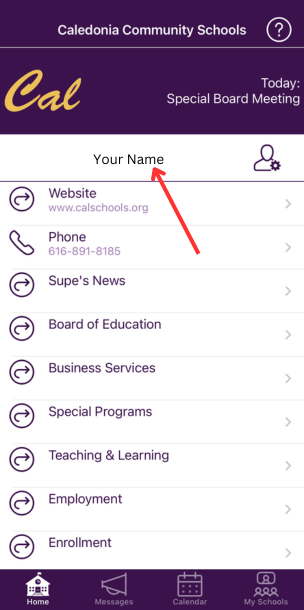
3\. Click on your name.
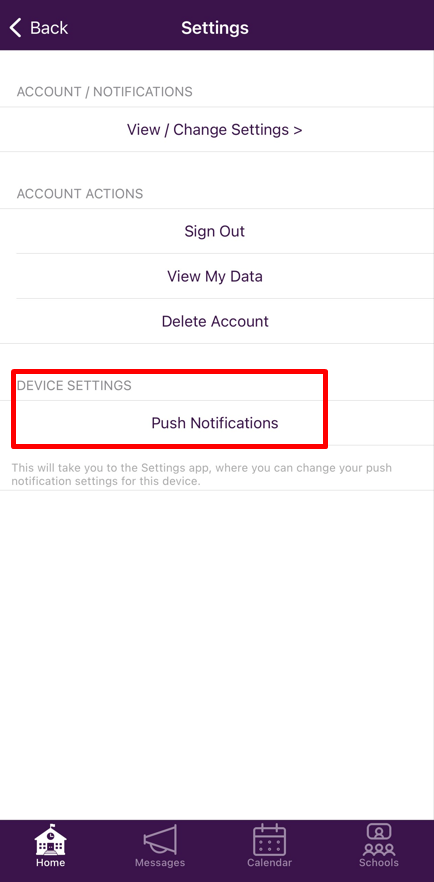
4\. Under "Device Settings", click "Push Notifications".
[](https://ccskb.calschools.org/uploads/images/gallery/2022-11/image-1667572440878.png)
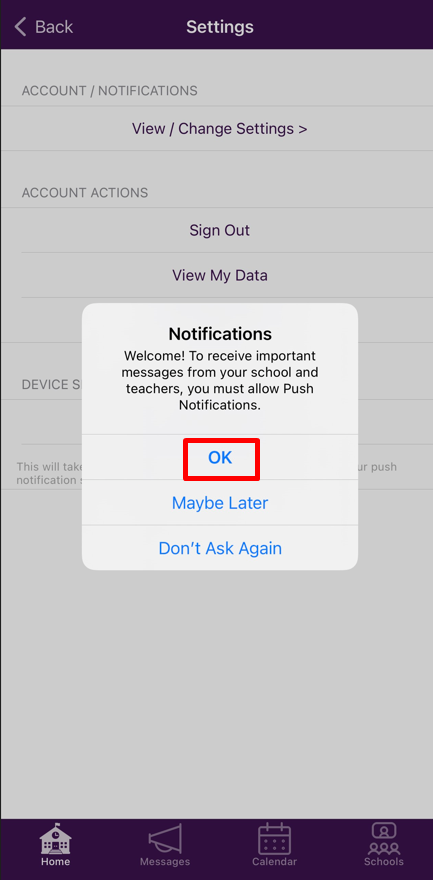
5\. A pop up will appear to take you to your phone settings to enable notifications. Click "OK".
[](https://ccskb.calschools.org/uploads/images/gallery/2022-11/image-1667572524981.png)# How to Edit Email/Text Notification Settings on the CCS App
**This article will show how to edit your email and text notification settings on the Caledonia Community Schools app.**
1\. Go to the Caledonia Community Schools app.
2\. If you are not already signed in, click "Sign In" and sign in.

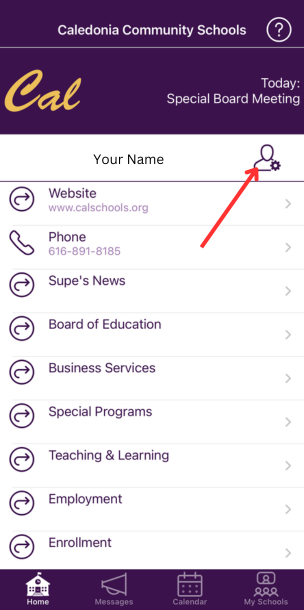
3\. Click on your name.

4\. Click the Settings button.
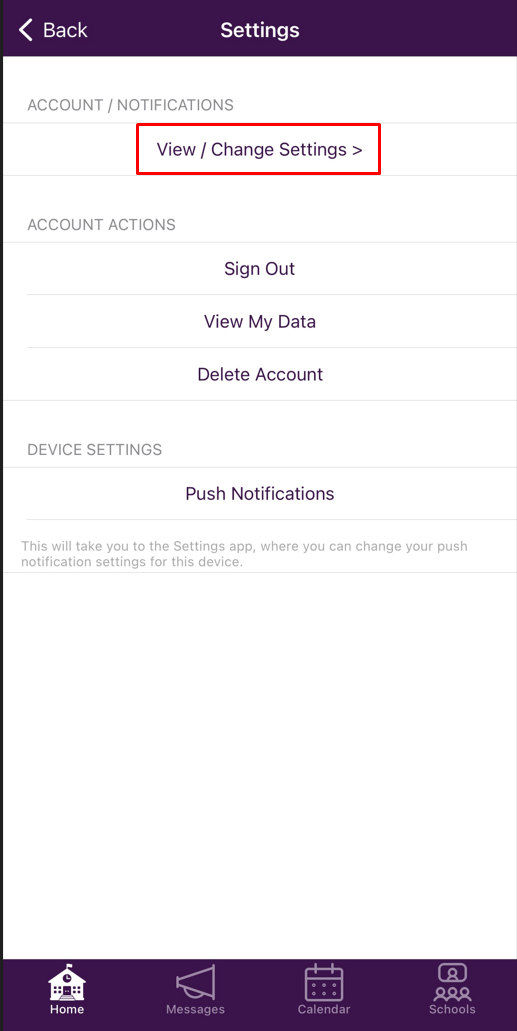
5\. Click "View/Change Settings".
[](https://ccskb.calschools.org/uploads/images/gallery/2022-11/image-1667832495084.png)
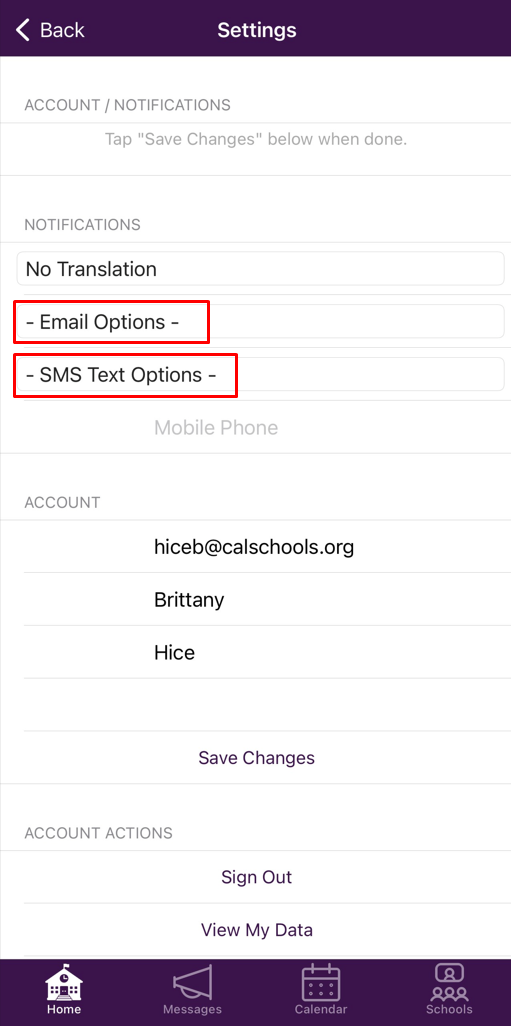
6\. Click the box next to "Email Notifications" or "SMS Text Notifications".
[](https://ccskb.calschools.org/uploads/images/gallery/2022-11/image-1667832710374.png)
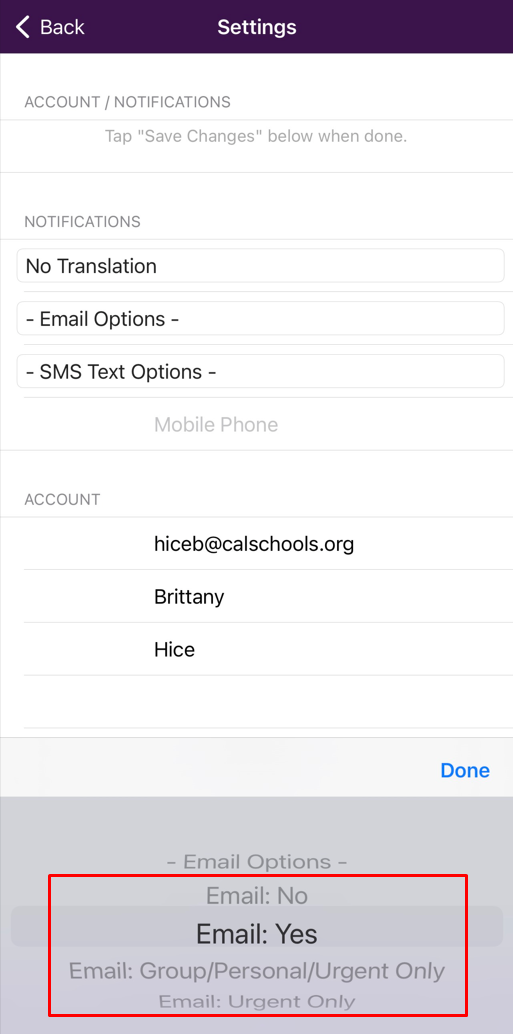
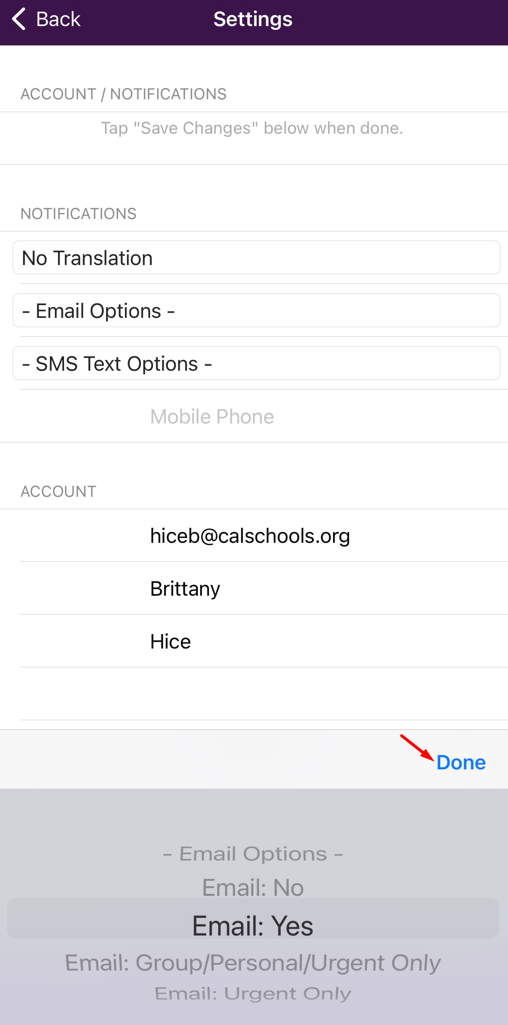
6\. Select an option.
[](https://ccskb.calschools.org/uploads/images/gallery/2022-11/image-1667832756169.png)
7\. Click "Done".
[](https://ccskb.calschools.org/uploads/images/gallery/2022-11/image-1667832776942.png)
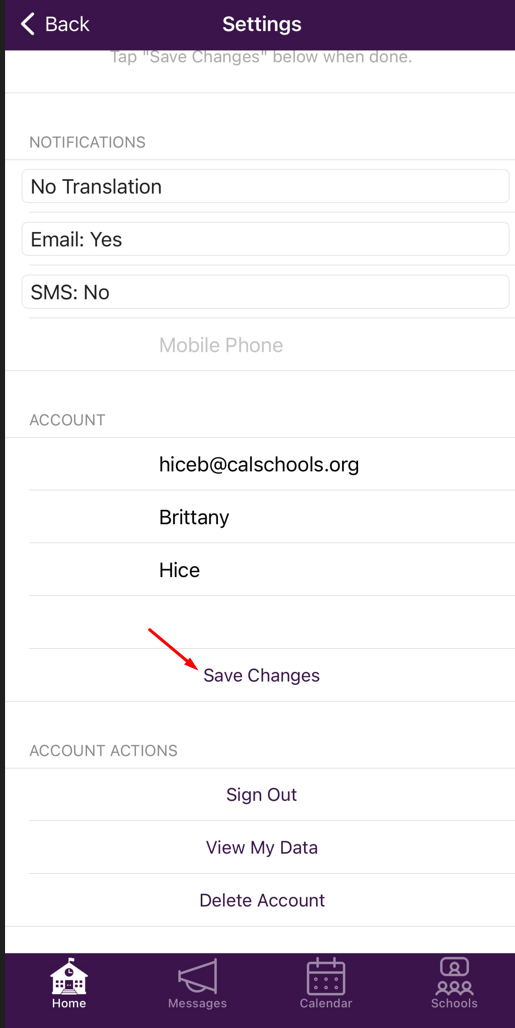
8\. Click "Save Changes".
[](https://ccskb.calschools.org/uploads/images/gallery/2022-11/image-1667832809498.png)