Note: Your personal account must be a Google account. If not, you will need to create one to move the contents.
1\. Go to "takeout.google.com". [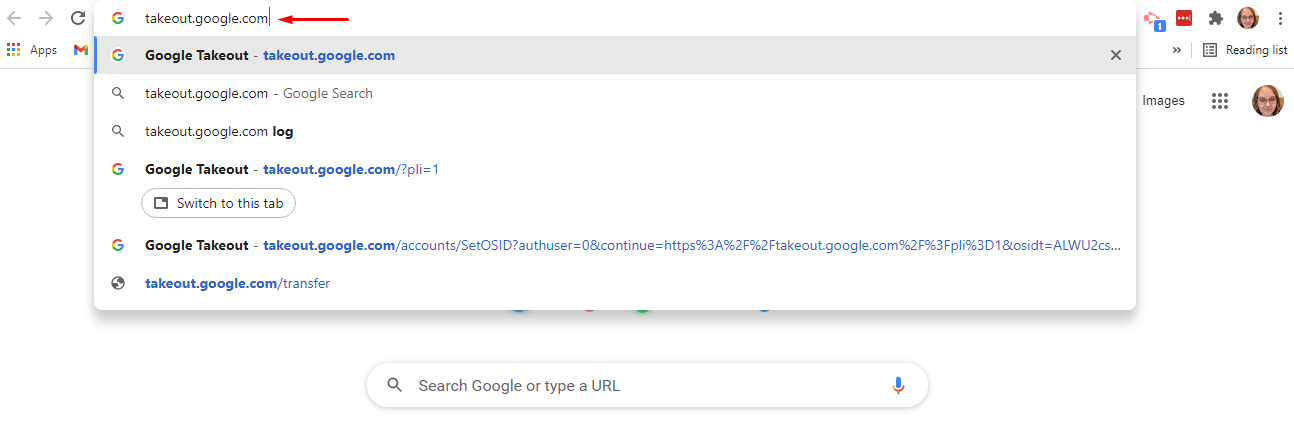](https://ccskb.calschools.org/uploads/images/gallery/2021-12/image-1639668809680.png) 2\. Click "Deselect All". [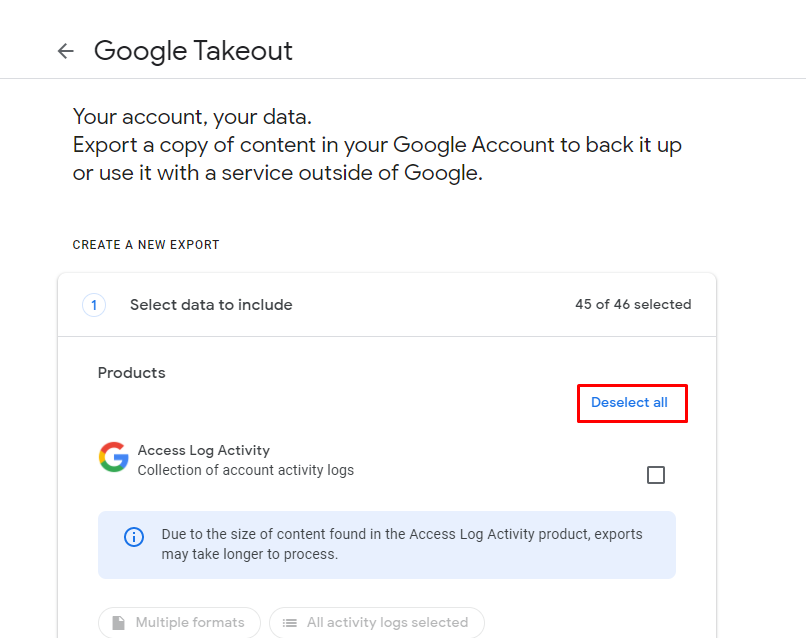](https://ccskb.calschools.org/uploads/images/gallery/2021-12/image-1639672100858.png) 3\. Scroll down to find "Drive" and click the checkbox.Note: If there are other things you want to transfer over, check those boxes as well.
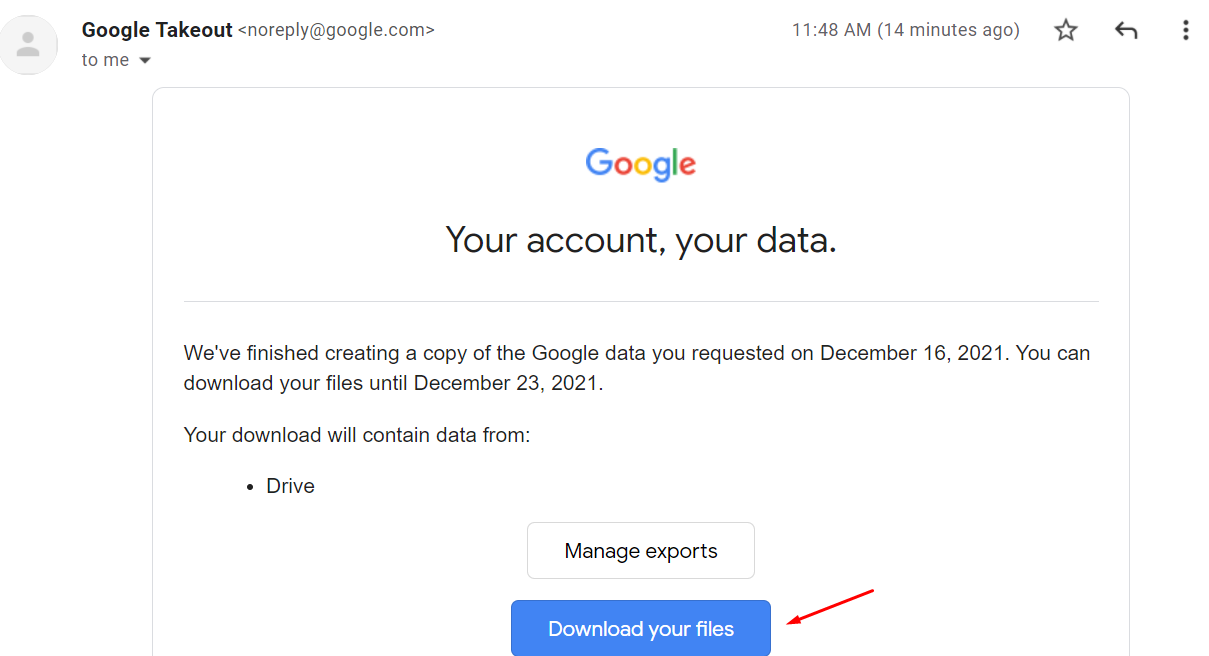
[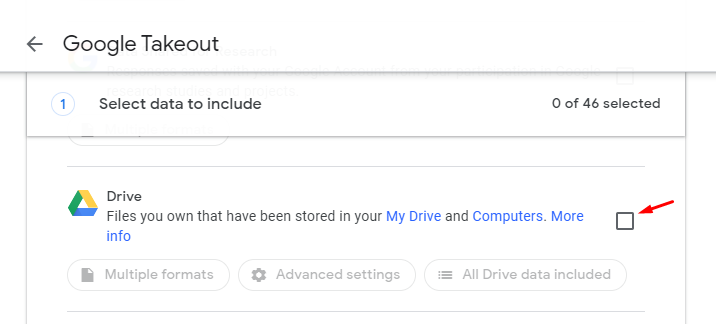](https://ccskb.calschools.org/uploads/images/gallery/2021-12/image-1639672146494.png) 4\. Scroll to the bottom and click "Next Step". [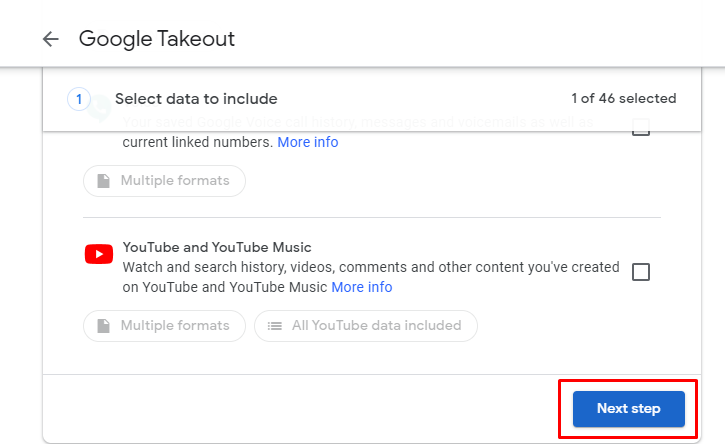](https://ccskb.calschools.org/uploads/images/gallery/2021-12/image-1639672225426.png) 5\. Make sure the "Export Once" is selected. [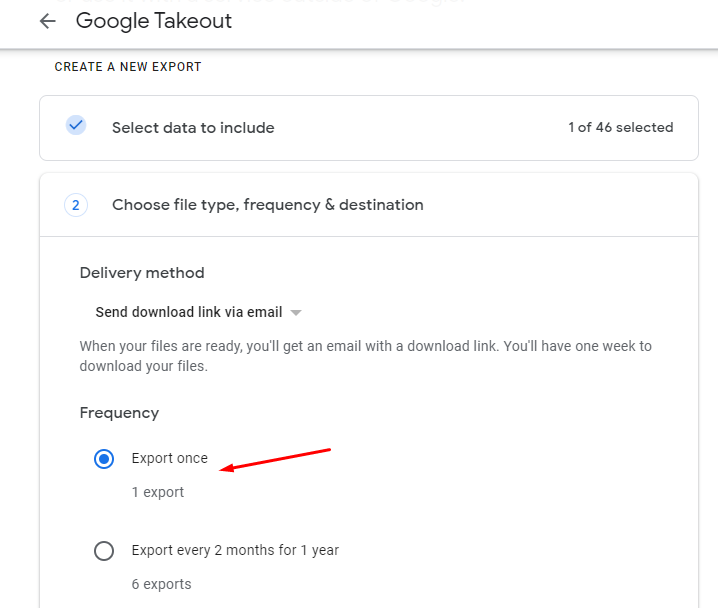](https://ccskb.calschools.org/uploads/images/gallery/2021-12/image-1639672282026.png) 6\. Make sure the "File Type" is set to ".zip". [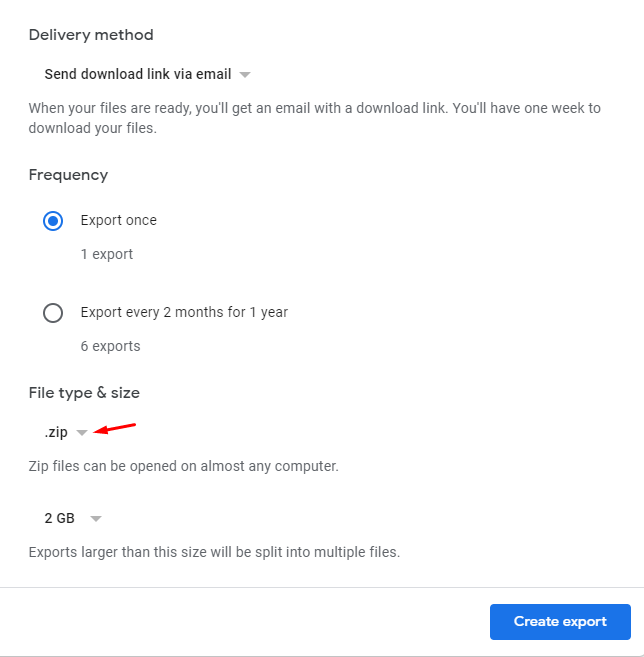](https://ccskb.calschools.org/uploads/images/gallery/2021-12/image-1639672322007.png) 7\. Click "Create Export". [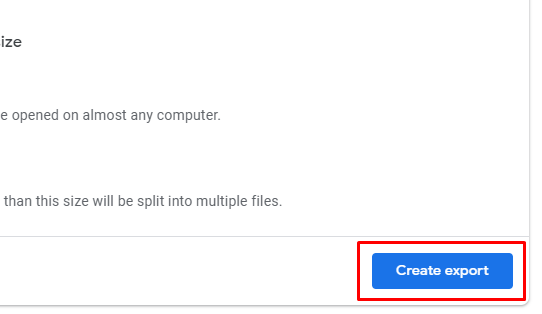](https://ccskb.calschools.org/uploads/images/gallery/2021-12/image-1639672364963.png) 8\. A screen with the export process will appear. [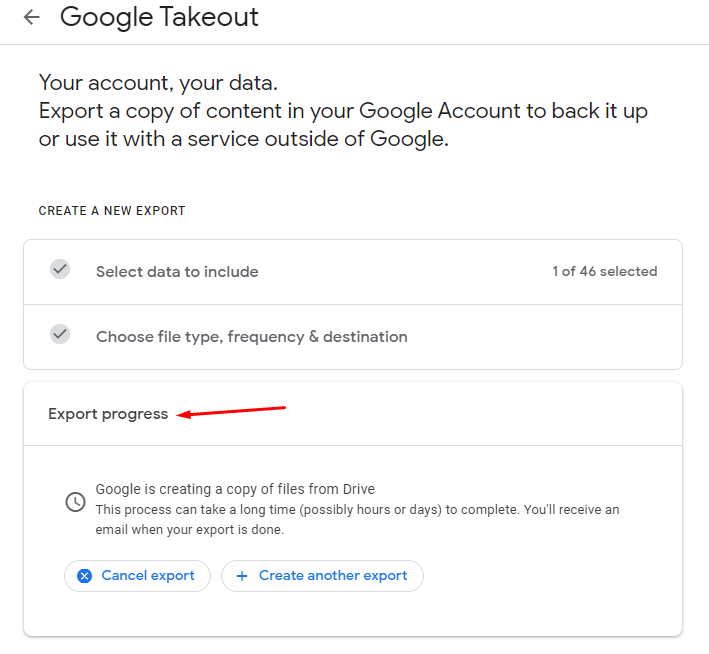](https://ccskb.calschools.org/uploads/images/gallery/2021-12/image-1639672402763.png) 9\. When the export is done, you will receive an email. Click "Download your files"Note: This may take quite awhile to get if you have a lot of files in your drive.
[](https://ccskb.calschools.org/uploads/images/gallery/2021-12/image-1639674202255.png) 10\. Find the file in "Downloads". It will be a zipped file. [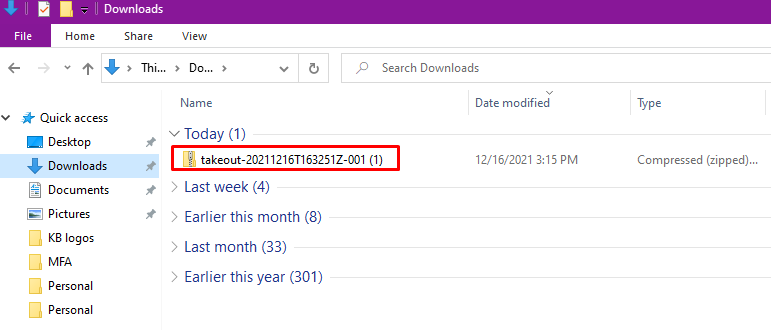](https://ccskb.calschools.org/uploads/images/gallery/2021-12/image-1639686148583.png) 11\. To unzip it, right click and select "Extract All". [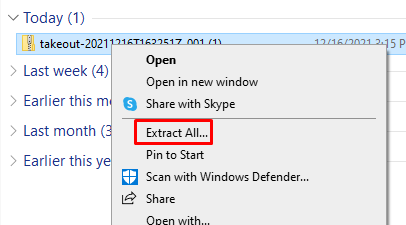](https://ccskb.calschools.org/uploads/images/gallery/2021-12/image-1639686190571.png) 12\. Click "Extract". [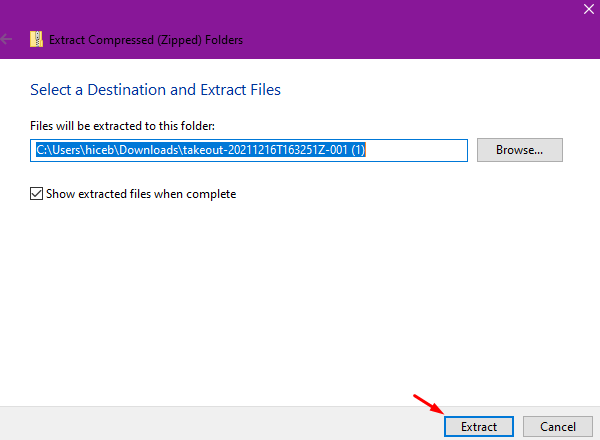](https://ccskb.calschools.org/uploads/images/gallery/2021-12/image-1639686219363.png) 13\. The file will open in a new folder window location. You will see the file is now unzipped. [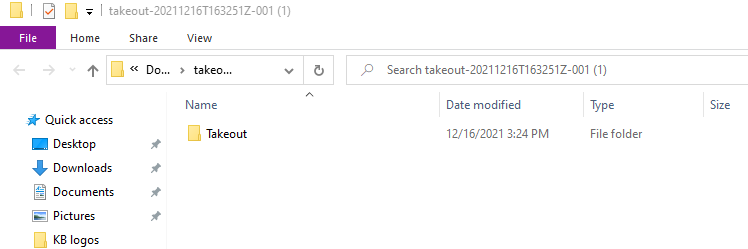](https://ccskb.calschools.org/uploads/images/gallery/2021-12/image-1639686384898.png) 14\. Go to your personal account Google Drive. Click "New". [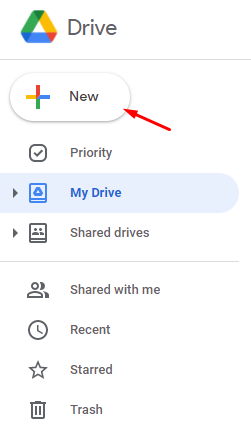](https://ccskb.calschools.org/uploads/images/gallery/2021-12/image-1639678675150.png) 15\. Select "File Upload". [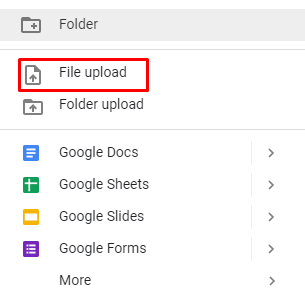](https://ccskb.calschools.org/uploads/images/gallery/2021-12/image-1639678763742.png) 16\. Select the unzipped file from your computer, it will most likely be in your Downloads. [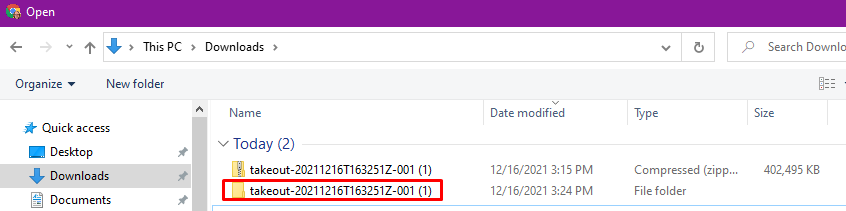](https://ccskb.calschools.org/uploads/images/gallery/2021-12/image-1639686502262.png) 17\. Double click "Takeout". [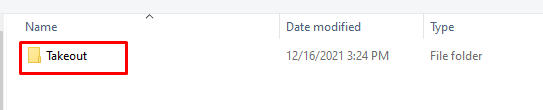](https://ccskb.calschools.org/uploads/images/gallery/2021-12/image-1639686547654.png) 18\. Double click "Drive". [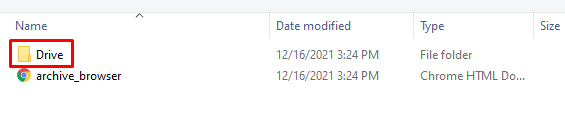](https://ccskb.calschools.org/uploads/images/gallery/2021-12/image-1639686567782.png) 19\. Click "Organize" then "Select All". [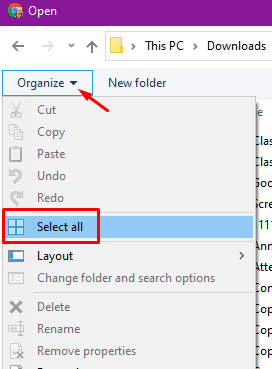](https://ccskb.calschools.org/uploads/images/gallery/2021-12/image-1639686619283.png) 20\. All of the files will be selected. Now, click "Open". [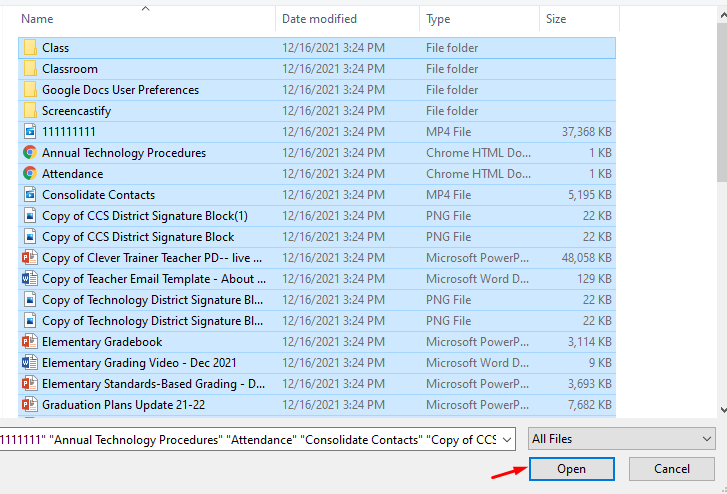](https://ccskb.calschools.org/uploads/images/gallery/2021-12/image-1639686648318.png) 21\. An upload status bar will appear in the bottom right. [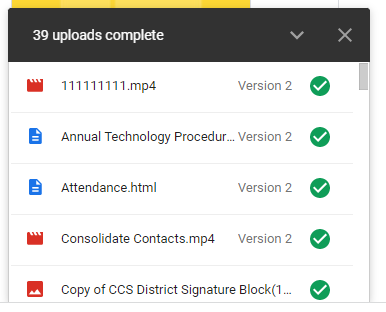](https://ccskb.calschools.org/uploads/images/gallery/2021-12/image-1639686682224.png) 22\. Once complete, you will see all of the files in your drive.# How to Scan Documents for Google Drive with Android **This article will show how to scan documents with Google Drive.** **Scan a Document** 1\. Open the Google Drive app [](https://ccskb.calschools.org/uploads/images/gallery/2023-01/image-1673630604591.png) 2\. In the bottom right click "Add" [](https://ccskb.calschools.org/uploads/images/gallery/2023-01/image-1673630592246.png) 3\. Click "Scan" [](https://ccskb.calschools.org/uploads/images/gallery/2023-01/image-1673630631677.png) 4\. Take a photo of the document you want to scan. - Adjust scan area: Click "Crop"[](https://ccskb.calschools.org/uploads/images/gallery/2023-01/image-1673630693102.png) - Take photo again: Click "Re-scan current page"[](https://ccskb.calschools.org/uploads/images/gallery/2023-01/image-1673630741861.png) - Scan another: Click "Add"[](https://ccskb.calschools.org/uploads/images/gallery/2023-01/image-1673630774141.png) 5\. Type in your own title 6\. To save the document to your drive, click "Save"[](https://ccskb.calschools.org/uploads/images/gallery/2023-01/image-1673630818287.png) **Add a scanning shortcut to your Home Screen** To set up a shortcut to scan documents: 1\. Open your Android phone widgets. 2\. Find the "Drive scan" widget. 3\. Touch and hold the widget. 4\. Drag it onto your home screen. You may be asked to select an account. 5\. Choose which folder you want to save the documents to. You can create a new folder by clicking "New Folder"[](https://ccskb.calschools.org/uploads/images/gallery/2023-01/image-1673630952645.png) 6\. Click "Select". You will now see your folder name in the widget.# How to Scan Documents on your iPhone or iPad **This article will show how to scan documents on your iPhone or iPad.** 1\. Open "Notes". 2\. Select a note or create a new one. 3\. Click the "Camera" button [](https://ccskb.calschools.org/uploads/images/gallery/2023-01/image-1673631070711.png) 4\. Click "Scan Documents" [](https://ccskb.calschools.org/uploads/images/gallery/2023-01/image-1673631092926.png) 5\. Place your document in the view of the camera. 6\. If you are in Auto mode, it will automatically can. If you would like to manually capture, click the "Shutter" button  or one of the Volume buttons. Then drag the corners to adjust the scan to fit the page, then click "Keep Scan". [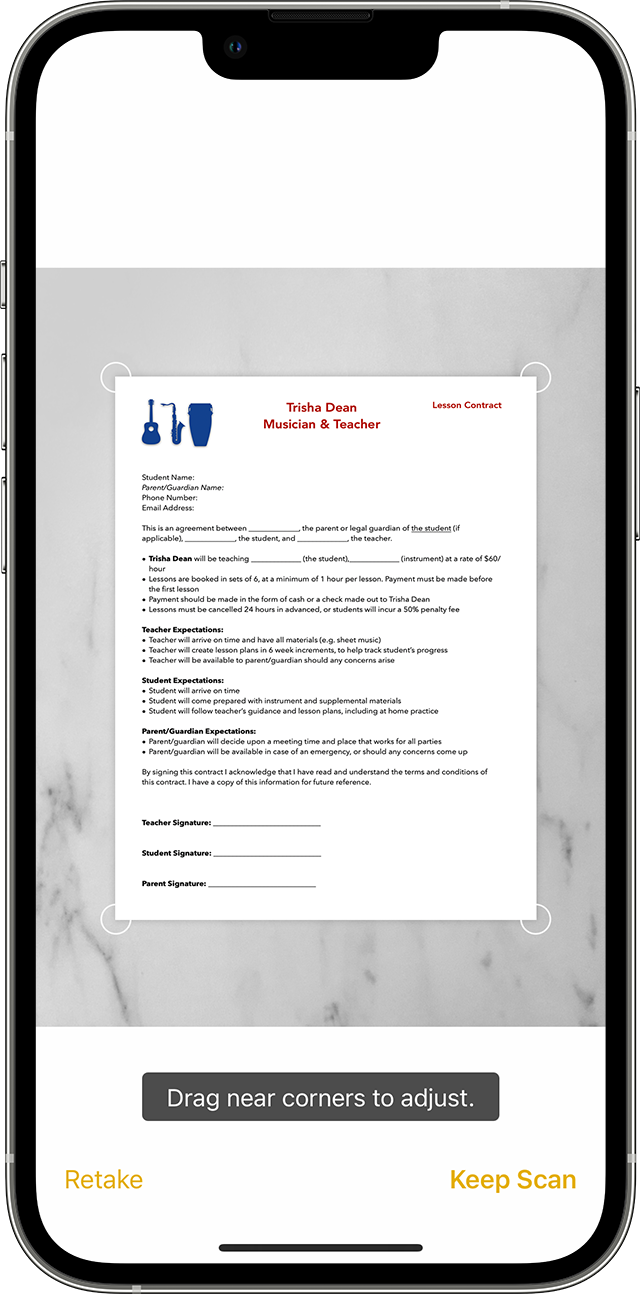](https://ccskb.calschools.org/uploads/images/gallery/2023-01/image-1673631286878.png) 7\. Click "Save" or add more documents.# How to Sign a Document on your iPhone or iPad **This article will show how to sign a document on your iPhone or iPad.** 1\. Open Notes. 2\. Select the document in the note. 3\. Click the "Share" button [](https://ccskb.calschools.org/uploads/images/gallery/2023-01/image-1673631408240.png) 4\. Click "Markup" [](https://ccskb.calschools.org/uploads/images/gallery/2023-01/image-1673631430225.png) 5\. Click the "Add" button[](https://ccskb.calschools.org/uploads/images/gallery/2023-01/image-1673631456464.png), then click "Signature" and add a saved signature or create a new signature. [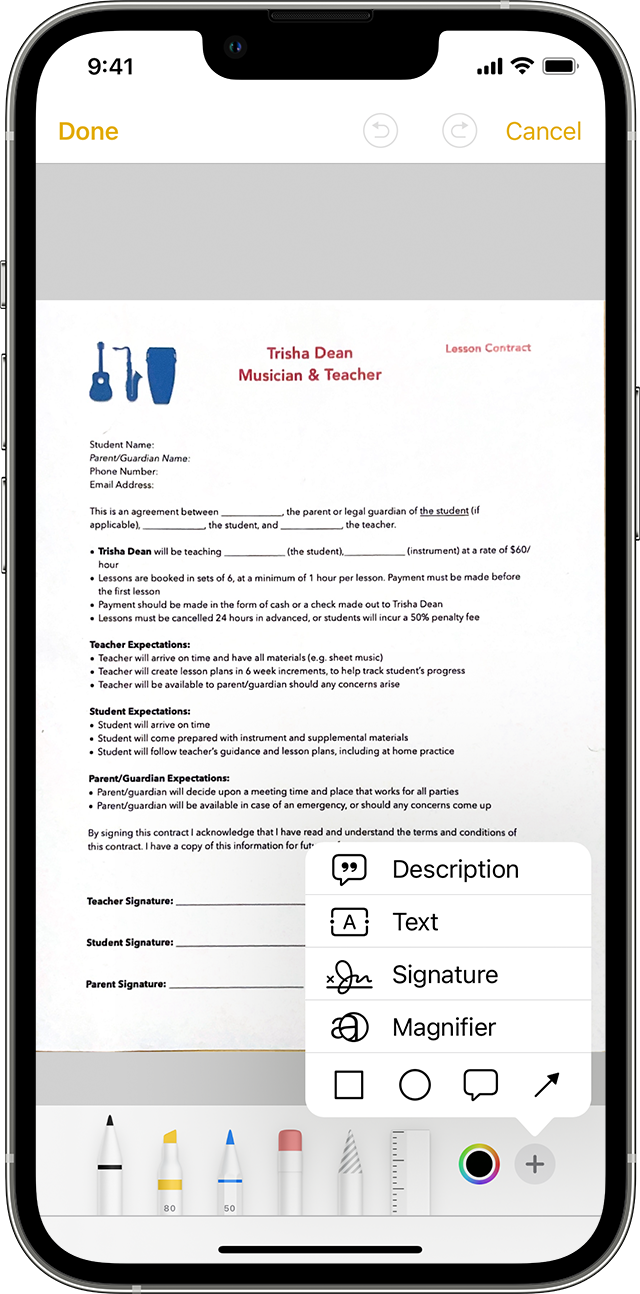](https://ccskb.calschools.org/uploads/images/gallery/2023-01/image-1673631516807.png) 6\. Click "Done".