How to Move Google Drive Content to Your Personal Account
This article will show how to move the contents of your school account to your personal account.
Note: Your personal account must be a Google account. If not, you will need to create one to move the contents.
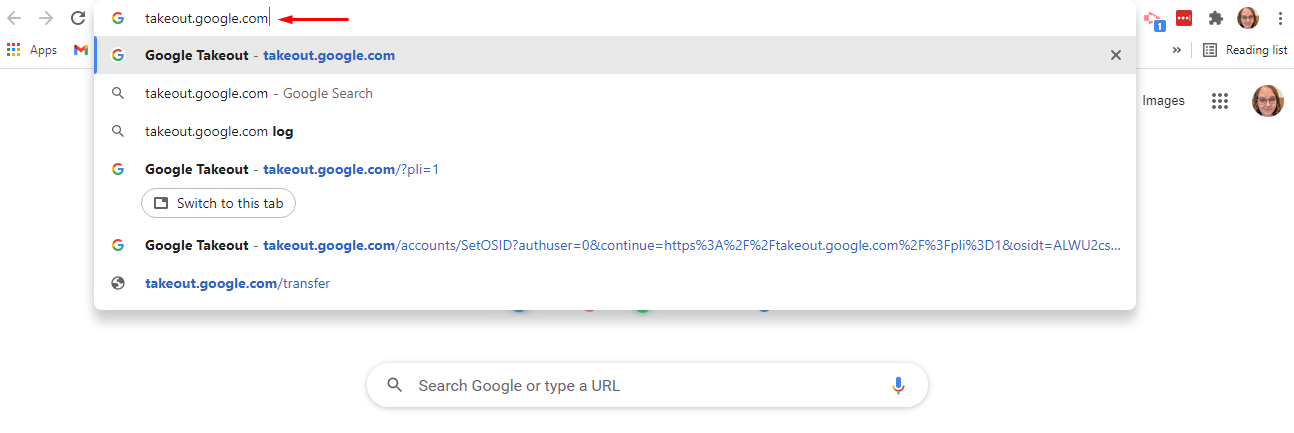
1. Go to "takeout.google.com".
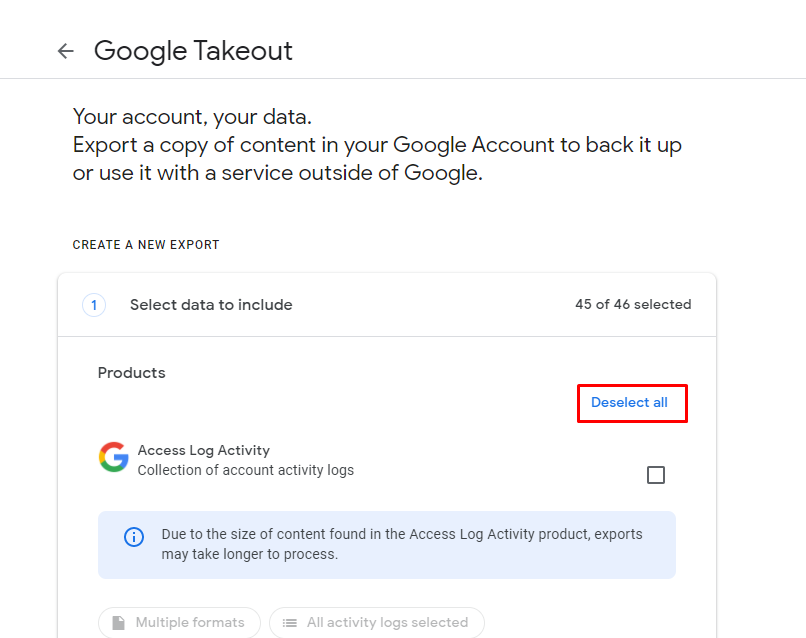
2. Click "Deselect All".
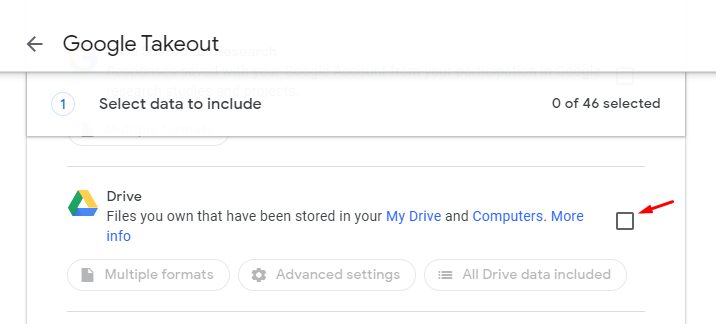
3. Scroll down to find "Drive" and click the checkbox.
Note: If there are other things you want to transfer over, check those boxes as well.
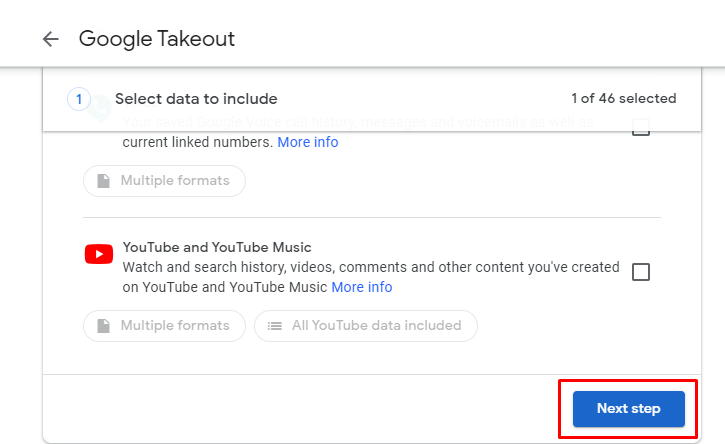
4. Scroll to the bottom and click "Next Step".
5. Make sure the "Export Once" is selected.
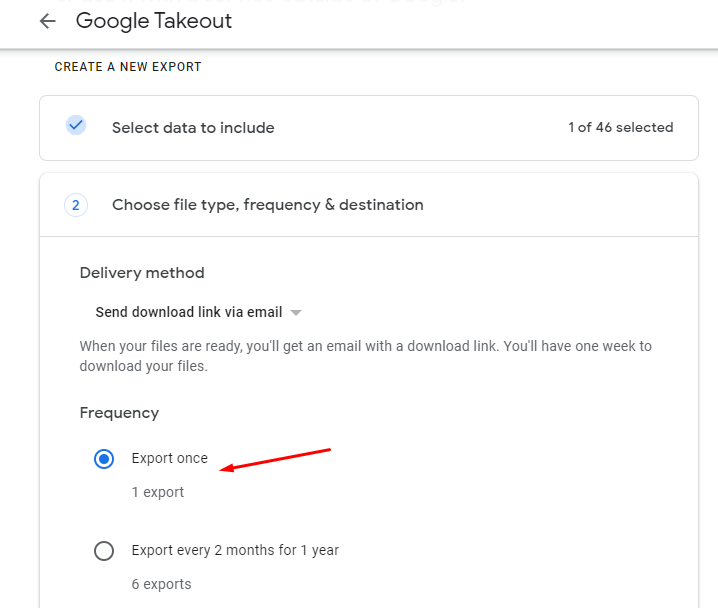
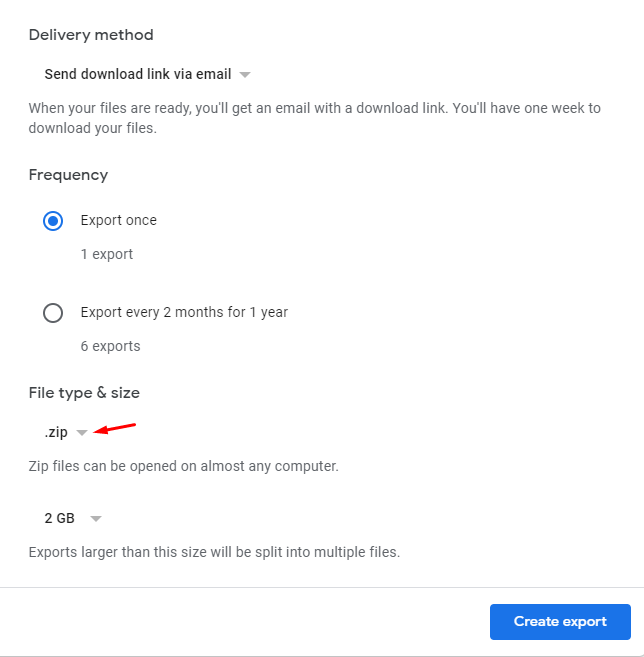
6. Make sure the "File Type" is set to ".zip".
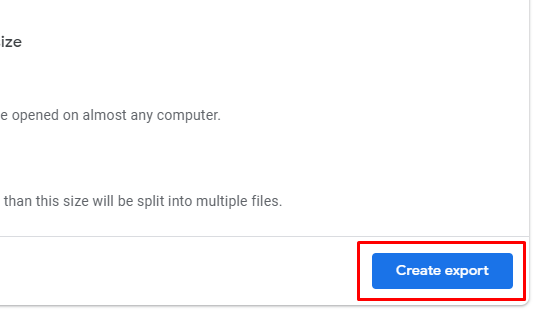
7. Click "Create Export".
8. A screen with the export process will appear.
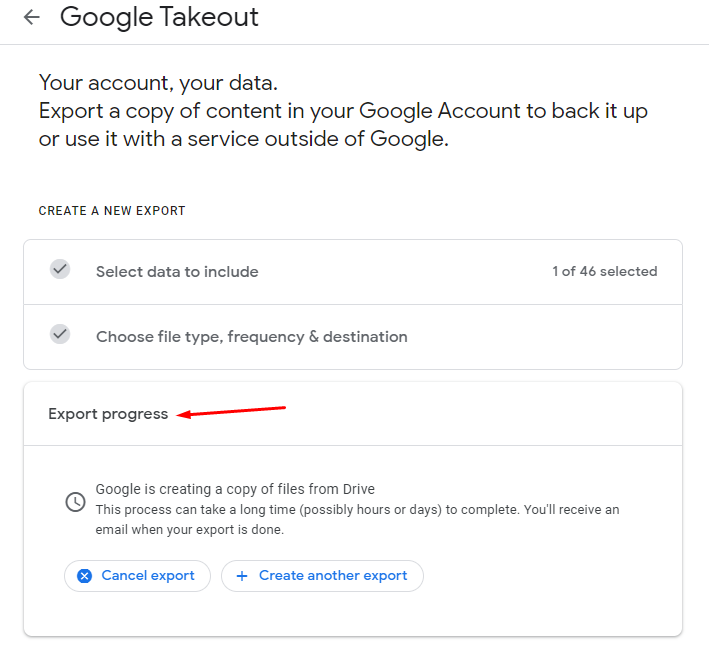
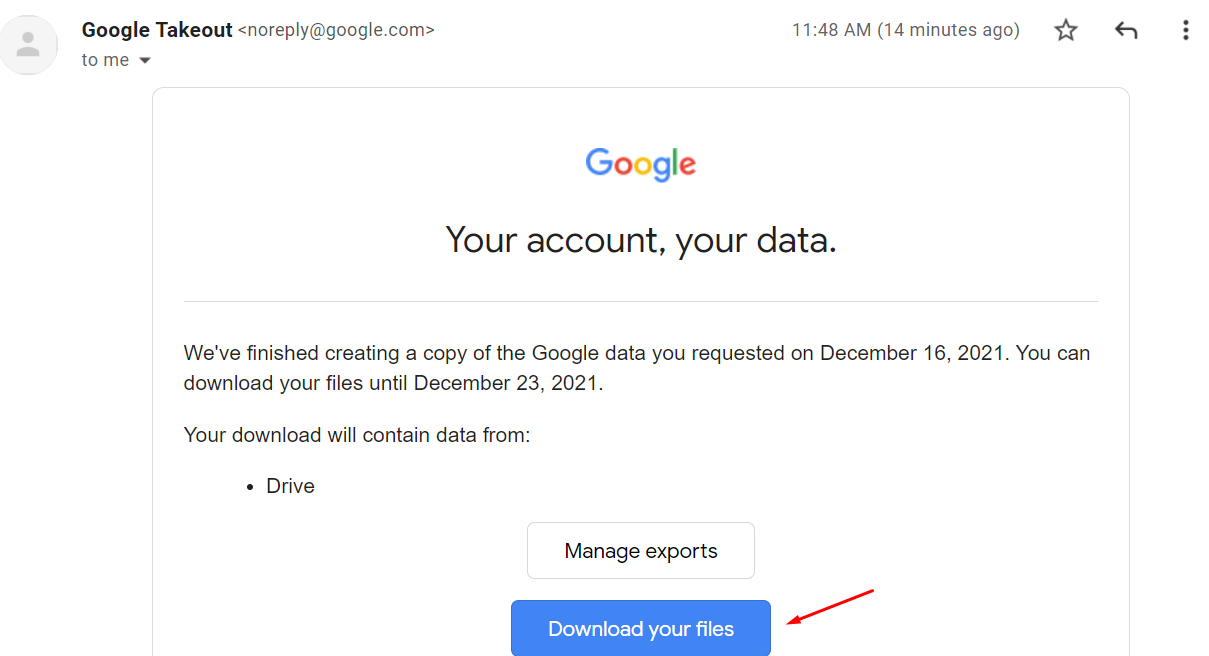
9. When the export is done, you will receive an email. Click "Download your files"
Note: This may take quite awhile to get if you have a lot of files in your drive.
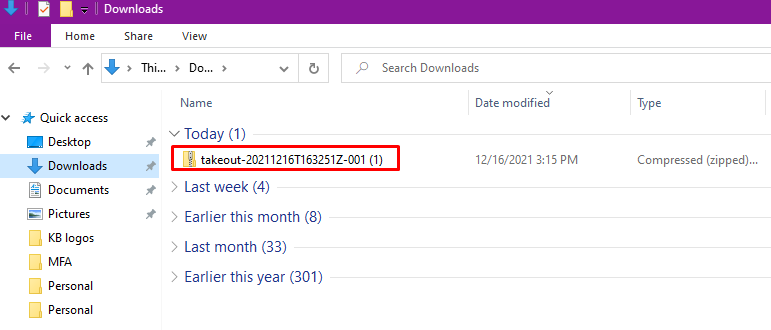
10. Find the file in "Downloads". It will be a zipped file.
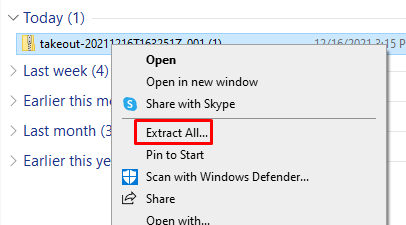
11. To unzip it, right click and select "Extract All".
12. Click "Extract".
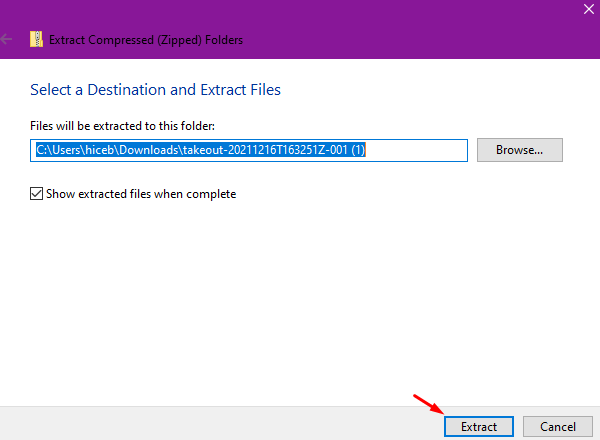
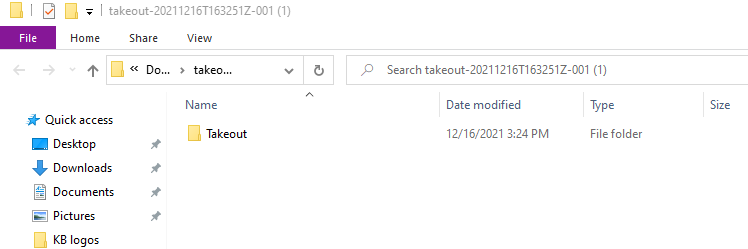
13. The file will open in a new folder window location. You will see the file is now unzipped.
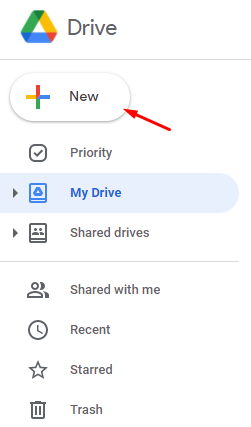
14. Go to your personal account Google Drive. Click "New".
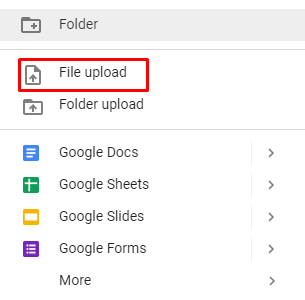
15. Select "File Upload".
16. Select the unzipped file from your computer, it will most likely be in your Downloads.
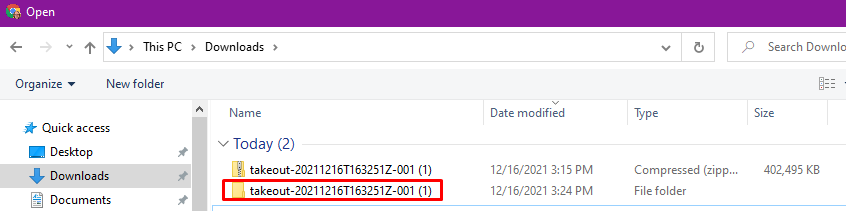
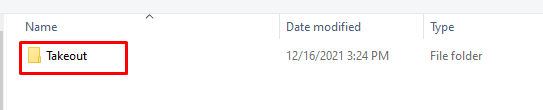
17. Double click "Takeout".
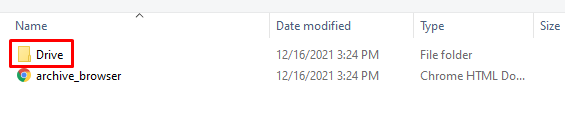
18. Double click "Drive".
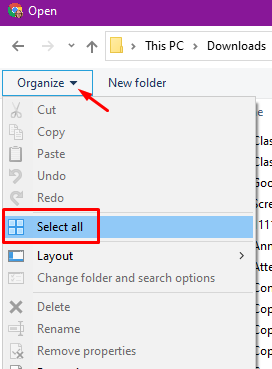
19. Click "Organize" then "Select All".
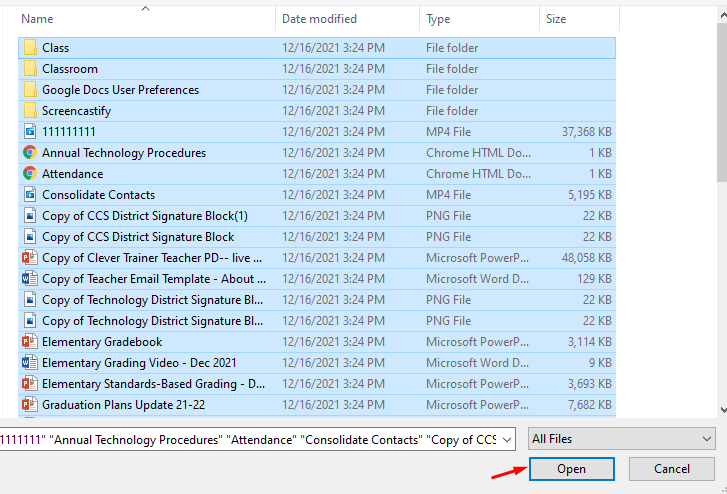
20. All of the files will be selected. Now, click "Open".
21. An upload status bar will appear in the bottom right.
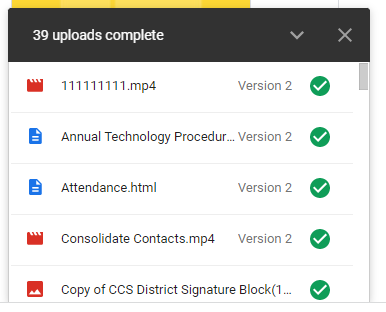
22. Once complete, you will see all of the files in your drive.