Note: Your personal account must be a Google account. If not, you will need to create one to move the contents.
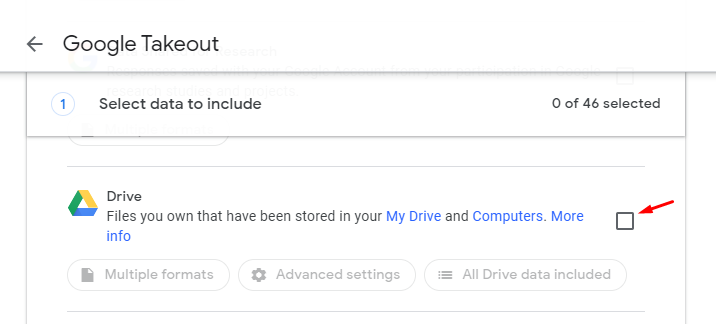
1\. Go to "takeout.google.com". [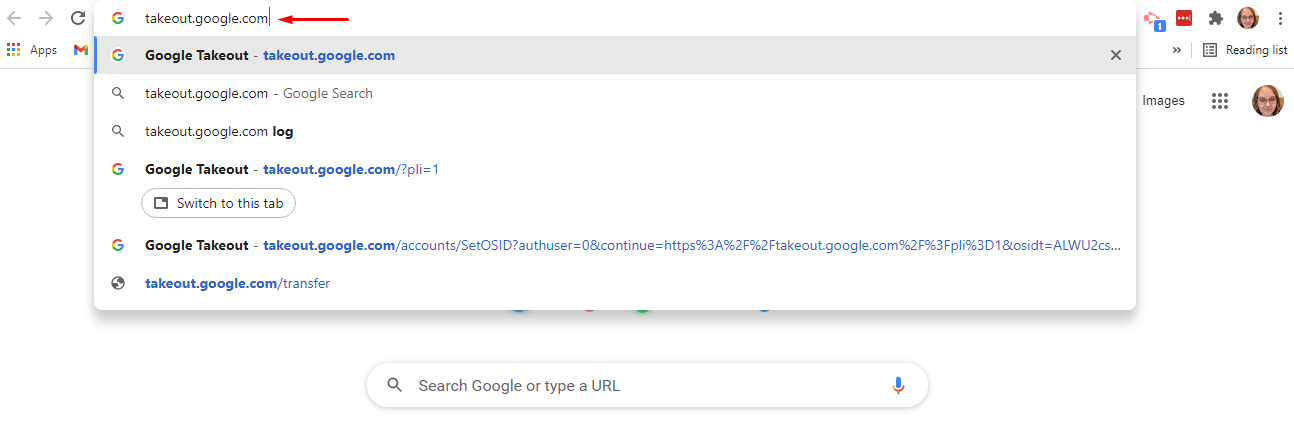](https://ccskb.calschools.org/uploads/images/gallery/2021-12/image-1639668809680.png) 2\. Click "Deselect All". [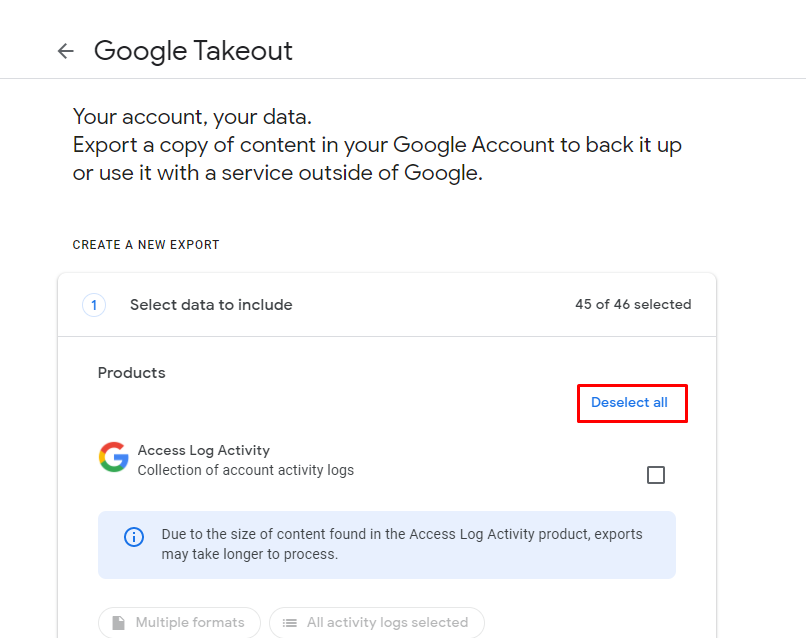](https://ccskb.calschools.org/uploads/images/gallery/2021-12/image-1639672100858.png) 3\. Scroll down to find "Drive" and click the checkbox.Note: If there are other things you want to transfer over, check those boxes as well.
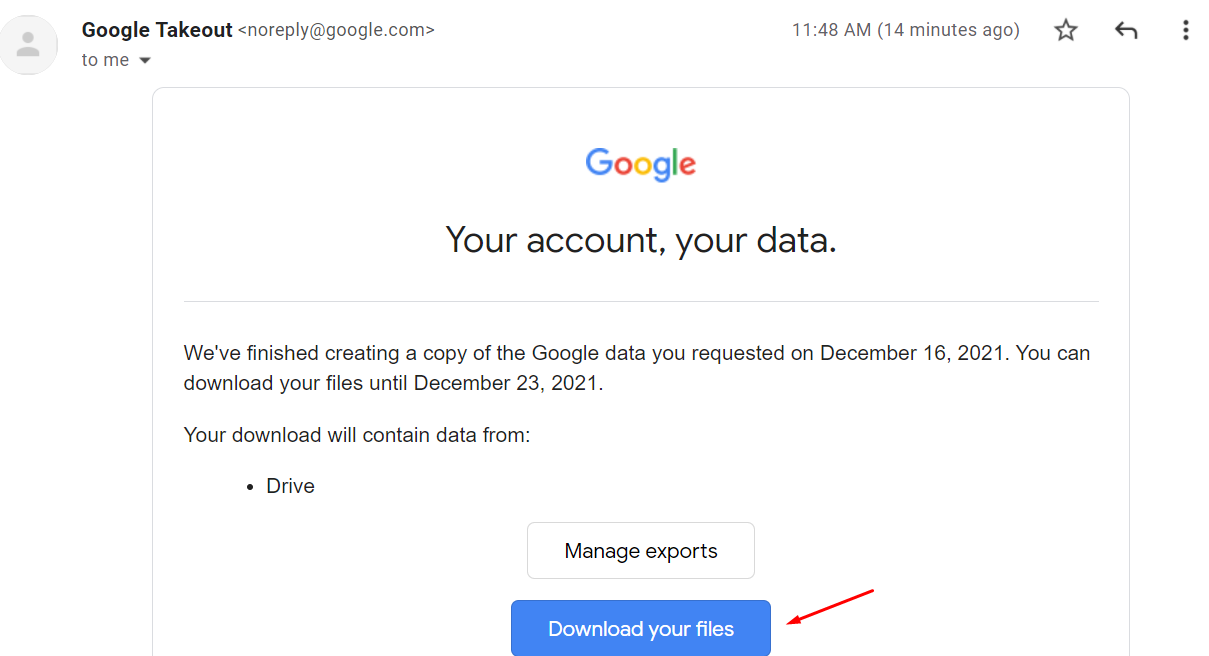
[](https://ccskb.calschools.org/uploads/images/gallery/2021-12/image-1639672146494.png) 4\. Scroll to the bottom and click "Next Step". [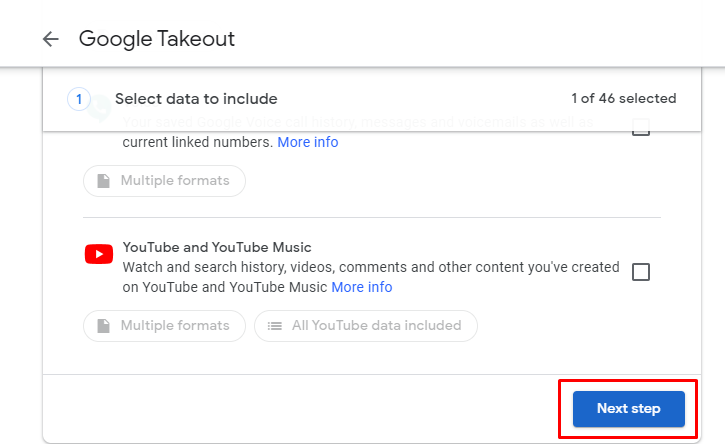](https://ccskb.calschools.org/uploads/images/gallery/2021-12/image-1639672225426.png) 5\. Make sure the "Export Once" is selected. [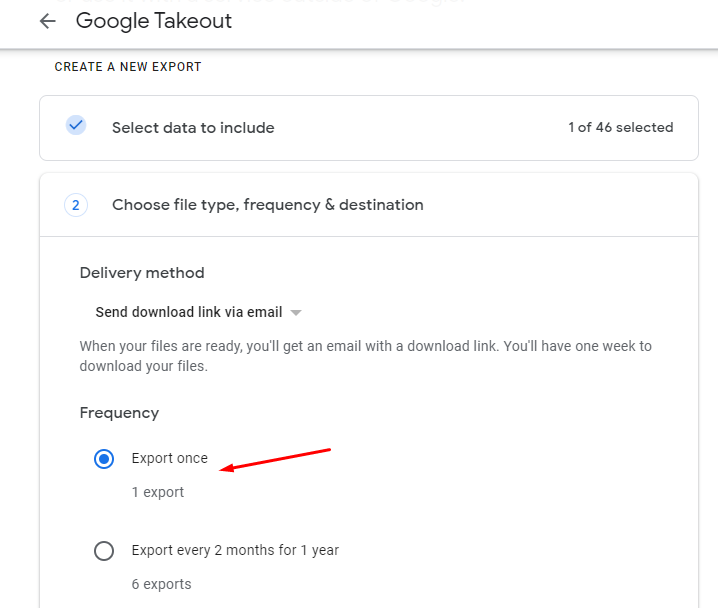](https://ccskb.calschools.org/uploads/images/gallery/2021-12/image-1639672282026.png) 6\. Make sure the "File Type" is set to ".zip". [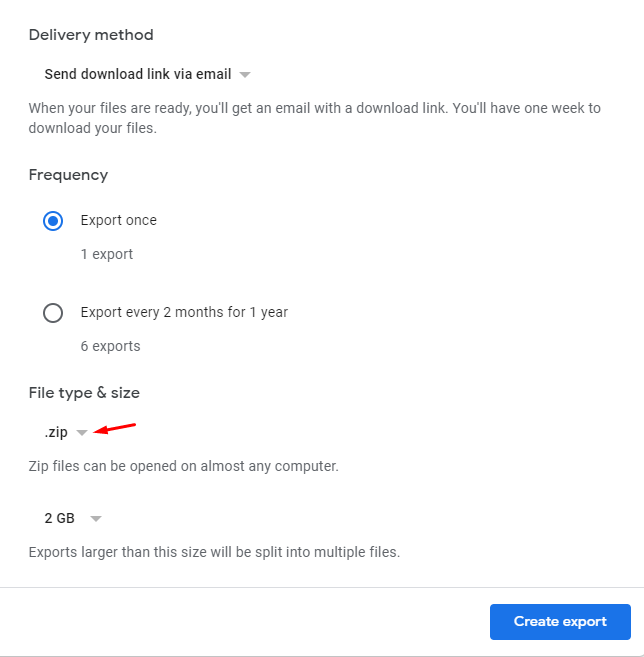](https://ccskb.calschools.org/uploads/images/gallery/2021-12/image-1639672322007.png) 7\. Click "Create Export". [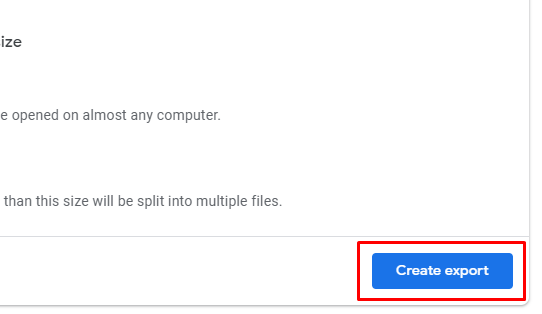](https://ccskb.calschools.org/uploads/images/gallery/2021-12/image-1639672364963.png) 8\. A screen with the export process will appear. [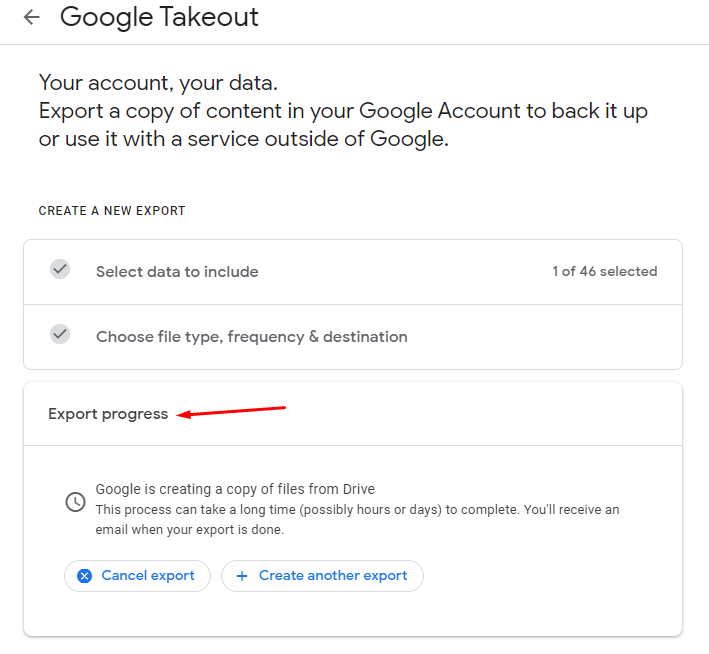](https://ccskb.calschools.org/uploads/images/gallery/2021-12/image-1639672402763.png) 9\. When the export is done, you will receive an email. Click "Download your files"Note: This may take quite awhile to get if you have a lot of files in your drive.
[](https://ccskb.calschools.org/uploads/images/gallery/2021-12/image-1639674202255.png) 10\. Find the file in "Downloads". It will be a zipped file. [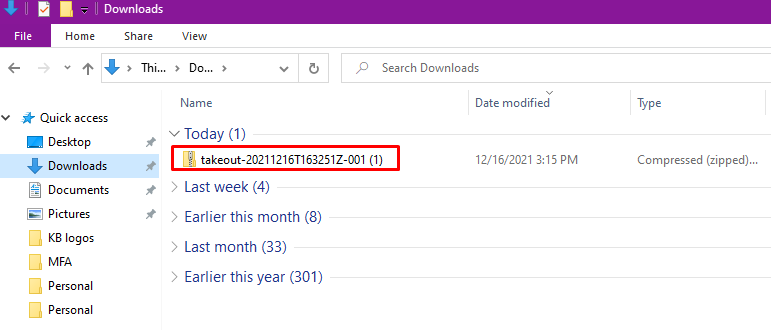](https://ccskb.calschools.org/uploads/images/gallery/2021-12/image-1639686148583.png) 11\. To unzip it, right click and select "Extract All". [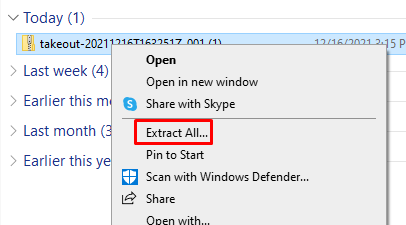](https://ccskb.calschools.org/uploads/images/gallery/2021-12/image-1639686190571.png) 12\. Click "Extract". [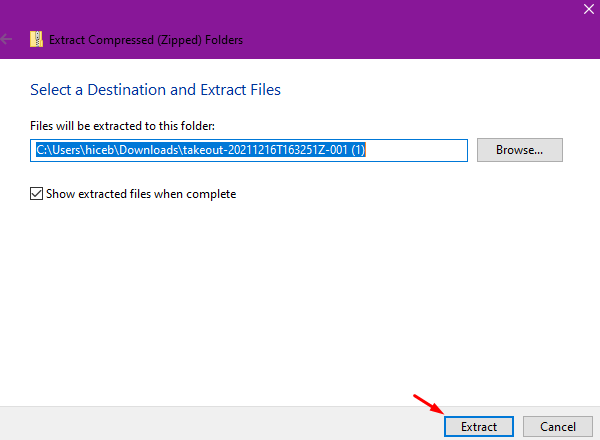](https://ccskb.calschools.org/uploads/images/gallery/2021-12/image-1639686219363.png) 13\. The file will open in a new folder window location. You will see the file is now unzipped. [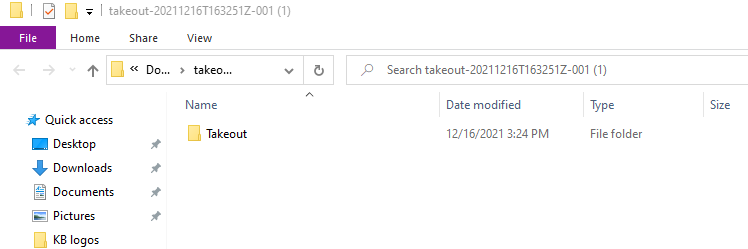](https://ccskb.calschools.org/uploads/images/gallery/2021-12/image-1639686384898.png) 14\. Go to your personal account Google Drive. Click "New". [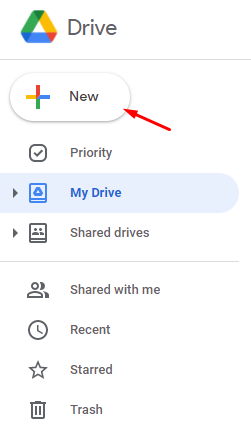](https://ccskb.calschools.org/uploads/images/gallery/2021-12/image-1639678675150.png) 15\. Select "File Upload". [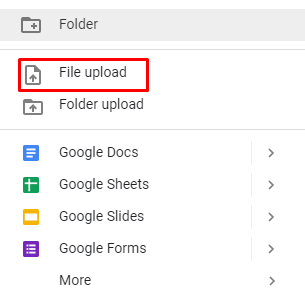](https://ccskb.calschools.org/uploads/images/gallery/2021-12/image-1639678763742.png) 16\. Select the unzipped file from your computer, it will most likely be in your Downloads. [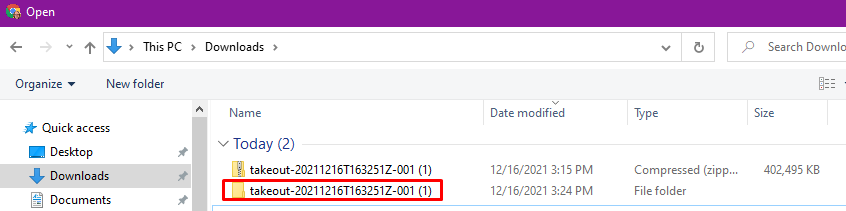](https://ccskb.calschools.org/uploads/images/gallery/2021-12/image-1639686502262.png) 17\. Double click "Takeout". [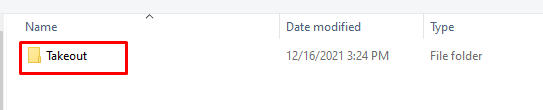](https://ccskb.calschools.org/uploads/images/gallery/2021-12/image-1639686547654.png) 18\. Double click "Drive". [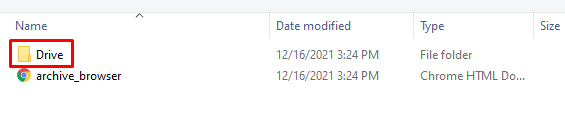](https://ccskb.calschools.org/uploads/images/gallery/2021-12/image-1639686567782.png) 19\. Click "Organize" then "Select All". [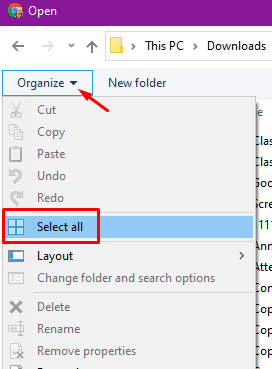](https://ccskb.calschools.org/uploads/images/gallery/2021-12/image-1639686619283.png) 20\. All of the files will be selected. Now, click "Open". [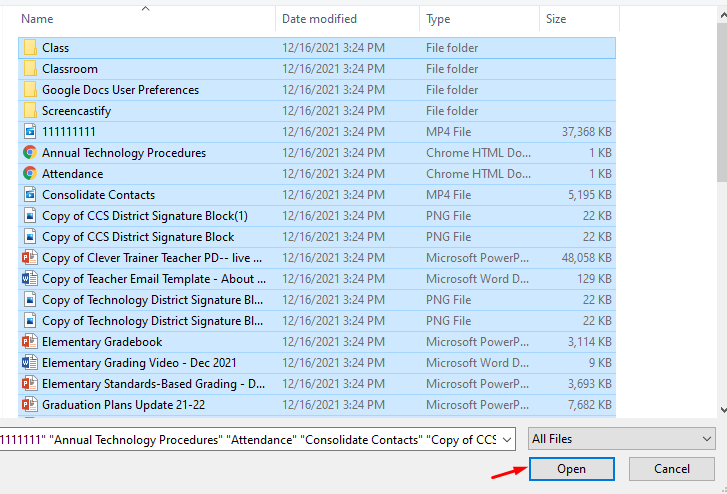](https://ccskb.calschools.org/uploads/images/gallery/2021-12/image-1639686648318.png) 21\. An upload status bar will appear in the bottom right. [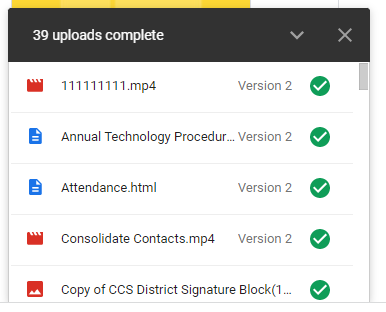](https://ccskb.calschools.org/uploads/images/gallery/2021-12/image-1639686682224.png) 22\. Once complete, you will see all of the files in your drive.