Note: These roles and permissions control what can be accessed when logged into InformaCast Advanced.
**InformaCast Users:** This group is required for any access in InformaCast Advanced Roles: schedAdjuster, schedEditor - Allows management of bell schedules Messages: All Ring Tone messages Recipient Groups: None **\[Building\]:** These are building identifier groups i.e. Dutton Elementary, Caledonia High, etc. Roles: None Messages: Lockdown and Shelter in Place messages for the specific building, Tornado Warning, Basic Paging, Bell Schedules and Ring Lists for the building Recipient Groups: The building related recipient groups **Principals:** Roles: messageAdmin, messageSender, and schedAdmin Messages: Clear All Relays Recipient Groups: None **Administration:** Roles: messageAdmin, messageEditor, and messageSender Messages: All Lockdowns, Shelter in Place, Tornado Warning, Basic Paging, Clear Relays, and District Radio Alert Recipient Groups: Admin - All Mobile, Admin - SRO MobileNote: Roles and permissions accumulate with membership to multiple groups
# Set Custom IC Advanced Messages Associate InformaCast Mobile Message Templates with InformaCast Advanced Messages. ***When the listed Message Template is sent from InformaCast Mobile, the appropriate Message in InformaCast Advanced will be triggered***.Caution: To associate an InformaCast Advanced messages with InformaCast Mobile Message Templates, the Advanced message must be set to "**Allow users to customize message at send time"**.
##### **Set Advanced Message to "Allow users to customize message at send time"** To verify/change this setting: - Select the message in InformaCast Advanced - Click on the **PREVIOUS** button in the lower right - [](https://ccskb.calschools.org/uploads/images/gallery/2022-11/image-1667390839918.png) - Check the **"Allow users to customize the message at send time"** checkbox - [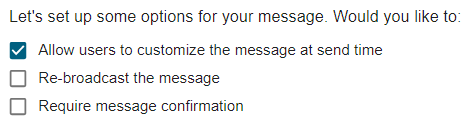](https://ccskb.calschools.org/uploads/images/gallery/2022-11/image-1667390920136.png) - To save the change - Click on the **COMPOSE MESSAGE** button in the lower right - Click on the **REVIEW MESSAGE** button in the lower right - Click on the **SAVE** button in the lower rightThe InformaCast Advanced message will now be available in the Set Custom InformaCast Advanced Messages setup
##### **Associate Advanced Message with Mobile Template** To associate an InformaCast Advanced message with with an InformaCast Mobile message template: - Login to InformaCast Advanced - Select **Endpoints** from the left menu - Select the **InformaCast Mobile** tile - Expand the **Set Custom InformaCast Advanced Messages** section - Click on the InformaCast Mobile message template - Select the InformaCast Advanced message to associate with from the message dropdown - Note: You may need to type a few characters of the message name for it to appear in the dropdown. - Click on the **SAVE** button to save the association # Set Custom IC Mobile Msg Template Associate InformaCast Advanced Messages with InformaCast Mobile Message Templates. ***When the listed Message is sent from InformaCast Advanced, the appropriate Message Template in InformaCast Mobile will be triggered***. ##### **To Associate IC Mobile Template with IC Advanced Message** - Login to InformaCast Advanced - Select **Endpoints** from the left menu - Select the **InformaCast Mobile** box - Expand the **Set Custom InformaCast Mobile Message Templates** section - Select the **InformaCast Advanced Message** to associate with an **InformaCast Mobile Message Template** - Select the InformaCast Mobile Message Template from the **Message Template** dropdown - Note: You may need to type a few characters of the message name for it to appear in the dropdown. - Click on the **SAVE** button to save the associationWarning: For an InformaCast Advanced Recipient Group to get passed to an InformaCast Mobile Message Template, the Distribution List on the InformaCast Mobile Message Template cannot be locked.
##### **To Verify/Unlock an IC Mobile Message Template Distribution List** - Login to InformaCast Mobile - Select **Message Templates** from the Quick Links menu or under Notifications from the main menu - Select the Message Template from the list - Scroll down to the **Recipient** section - Distribution Lists must be enabled (green check) - [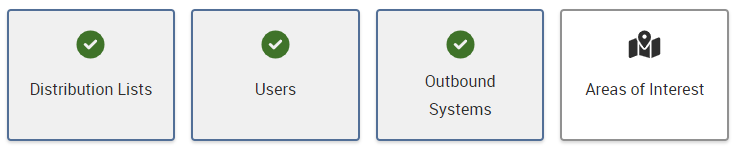](https://ccskb.calschools.org/uploads/images/gallery/2022-11/image-1667397882580.png) - The Distribution Lists dropdown must be **unlocked** - [](https://ccskb.calschools.org/uploads/images/gallery/2022-11/image-1667397990754.png) - If changes were made click on the **Save Template** button in the lower rightThe Message Template will now accept Recipient Groups from Informacast Advanced messages
# Distribution List to Recipient Group Association Associate InformaCast Mobile Distribution Lists with InformaCast Advanced Recipient Groups. For InformaCast Mobile to send messages to InformaCast Advanced Recipient Groups an association must be made between the InformaCast Mobile Distribution List and one or more InformaCast Advanced Recipient Group(s).Warning: For an InformaCast Mobile Distribution List to be associated with InformaCast Advanced Recipient Group(s), The InformaCast Mobile Distribution List must have ~System InformaCast set as a User and InformaCast Plugin set as an Application.
##### **To setup an IC Mobile Distribution List to be Associated with a Recipient Group** - Login to InformaCast Mobile - Select **Distribution Lists** from the Quick Links menu or under Recipients from the main menu - Select the InformaCast Mobile Distribution List you want to associate with an Informacast Advanced Recipient Group - Under the Users tab click on the plus sign (+) to the right to add a user - Click on the plus sign (**+**) to the right of ~System InformaCast from the list of users. - Note: The user row should be highlighted in yellow - Click on the Done button in the lower left - ~System InformaCast will now be listed as a user - Select the Applications tab - Click on the plus sign (+) to the right to add an application - Click on the plus sign (+) to the right of the InformaCast Plugin application - Note: The row should be highlighted in yellow - Click on the Done button in the lower left - InformaCast Plugin will now be listed as an application - Click on the Save button in the upper right to save the distribution listThe Distribution List will now be available in InformaCast Advanced for association with Recipient Groups.
##### **Associate IC Mobile Distribution List to IC Advanced Recipient Group** - Login to InformaCast Advanced - Select **Endpoints** from the left menu - Select the **InformaCast Mobile** tile - Expand the **InformaCast Mobile Distribution List to Recipient Group Association** section - Select the InformaCast Mobile Distribution List from the left column - Add one or more Recipient Groups to the dropdown - Hint: Type a few letter of the Recipient Group name to filter the list - Click on the **SAVE** button to save the association The selected Recipient Groups are now associated with the InformaCast Mobile Distribution List # InformaCast Emergency Notification Settings **DialCast** Dial phone code in the format: 505#\[BLDG NUM\] **Message** Alert - \[BLDG\] Lockdown Message **Recipient Groups** - \[BLDG\] - Lenel Panel On → Trigger Lenel relay on Barix - \[BLDG\] - Fire Panel On → Trigger Fire panel relay on Barix - \[BLDG\] - All → Send alert to all building phones and speakers - Includes \[BLDG\] - Mobile → Send alert building administrative staff - Admin - SRO Mobile → Send alert to district administrative staff and SRO **M2M Contact Closures** Lenel Input triggered on Barix relay IP Address for Barix relays **Input Ports** \[BLDG\] Lenel Input - This is triggered from the Lenel panel relay **Message** Alert - \[BLDG\] Lockdown Message **Recipient Groups** - \[BLDG\] - Fire Panel On → Trigger Fire panel relay on Barix - \[BLDG\] - All → Send alert to all building phones and speakers - Includes \[BLDG\] - Mobile → Send alert building administrative staff - Admin - SRO Mobile → Send alert to district administrative staff and SRO*Note: Do not include the "Lenel Panel On" relay because that is where the lockdown originated*
**Configure Output Ports for various relays** - Relay 1 - Always Lenel Panel - Relay 2 - Always Fire Panel - Relay 3 - Available - Relay 4 - Available*A Barix relay might be setup just to control other devices like security curtains and not need a Lenel or Fire Panel configured.*
# Mobile Information on InformaCast Mobile # Add/Edit Users Administrative staff and school security staff are set up in InformaCast Mobile in order to receive mobile notifications Log in to Informacast Mobile [https://admin.icmobile.singlewire.com/icmobile/#/home](https://admin.icmobile.singlewire.com/icmobile/#/home) Use your Caledonia Google account for Single Sign On Select Users from the Quick Links menu Click on Create User to add anew user or Edit next to an existing user to edit that user **Basic Information** - Name - Email **Registered Devices and Locations** - Add User Device - SMS - Phone Call - Email - Check the Verify checkbox Communication Preferences - Subscribe to appropriate Distribution Lists # Informacast Mobile User SetupInformacast mobile is used by administrative staff and other special purpose recipients. We are licensed for 50 Informacast mobile users.
**Login** - Log in at: [https://admin.icmobile.singlewire.com/icmobile/#/login](https://admin.icmobile.singlewire.com/icmobile/#/login) Use your CalSchools email address for Google SSO ##### **Add User** - Users - Click on Create User in upper right to add a new users **Basic Information** - Name (First & Last) - Email - Check Create an Email Device - Check Verify Email Device - Save **Under Registered Devices and Locations** - Add User Device - Device Type: SMS - Phone Number: District cell phone number - Name: Mobile - Enabled - Save - Verify Device Immediately: Check Verify Device - OKAdd additional mobile numbers for SMS, phone number for voice calls, and additional email addresses
**Communication Preferences** Subscribe to Distribution List - Add Mobile group membership based on position - Mobile-Admin All - Mobile-\[BLDG\]*Note: The members of these groups get notifications for different situations*
**Security Tab** **Security Information** *Enter lockdown notifications the user can initiate by selecting Security Group* - Assign to Security Group - \[BLDG}-Lockdown - Save # Mobile App # Login to the Mobile App You login to the mobile app with SSO using your Caledonia Google Workspace credentials Open the Informacast mobile app and tap on the Log In button [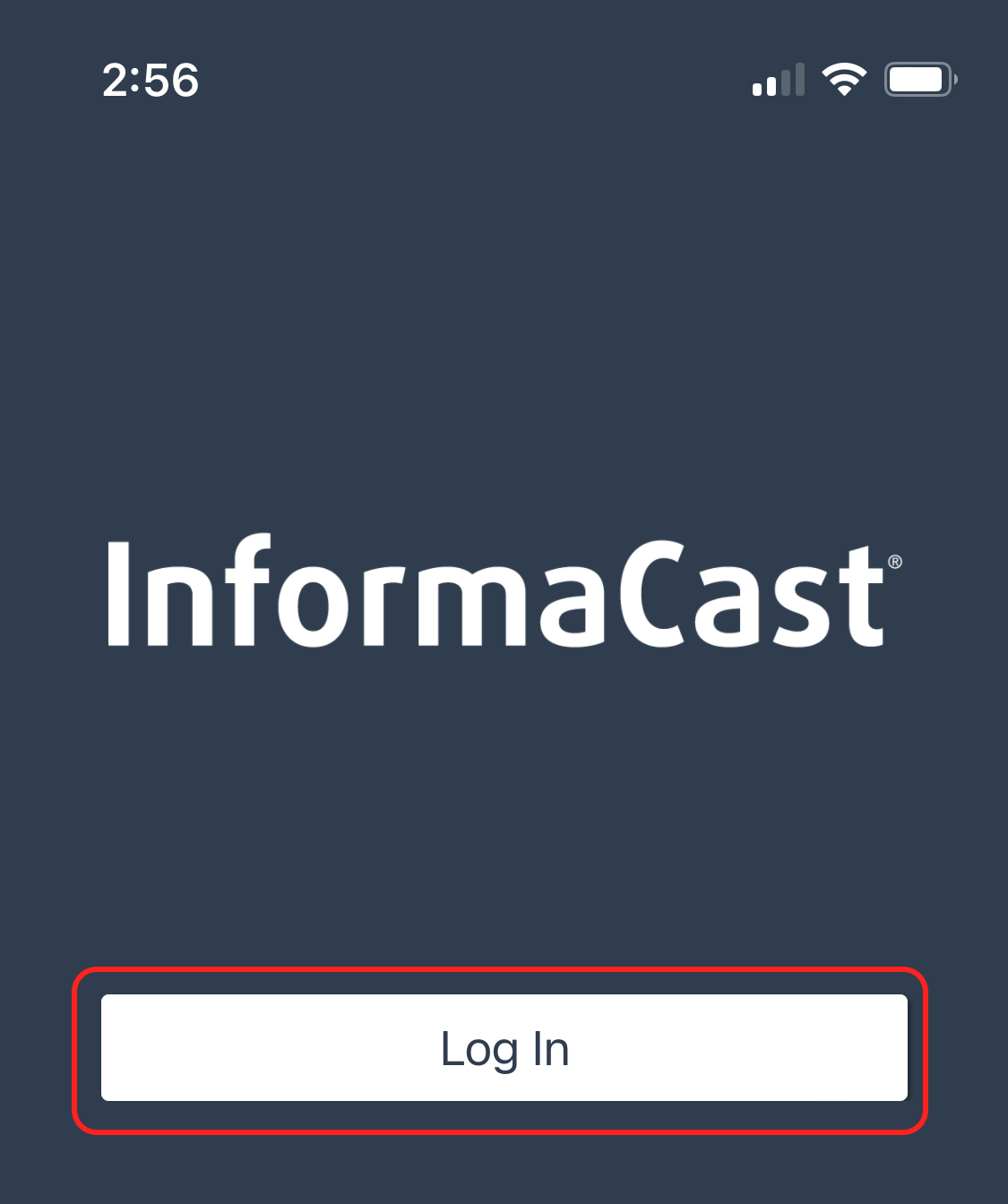](https://ccskb.calschools.org/uploads/images/gallery/2022-10/image-1666811115317.png) Enter your Caledonia Google Workspace email address and tap on the red continue buttonNote: You might need to select the correct Google account and enter your password
[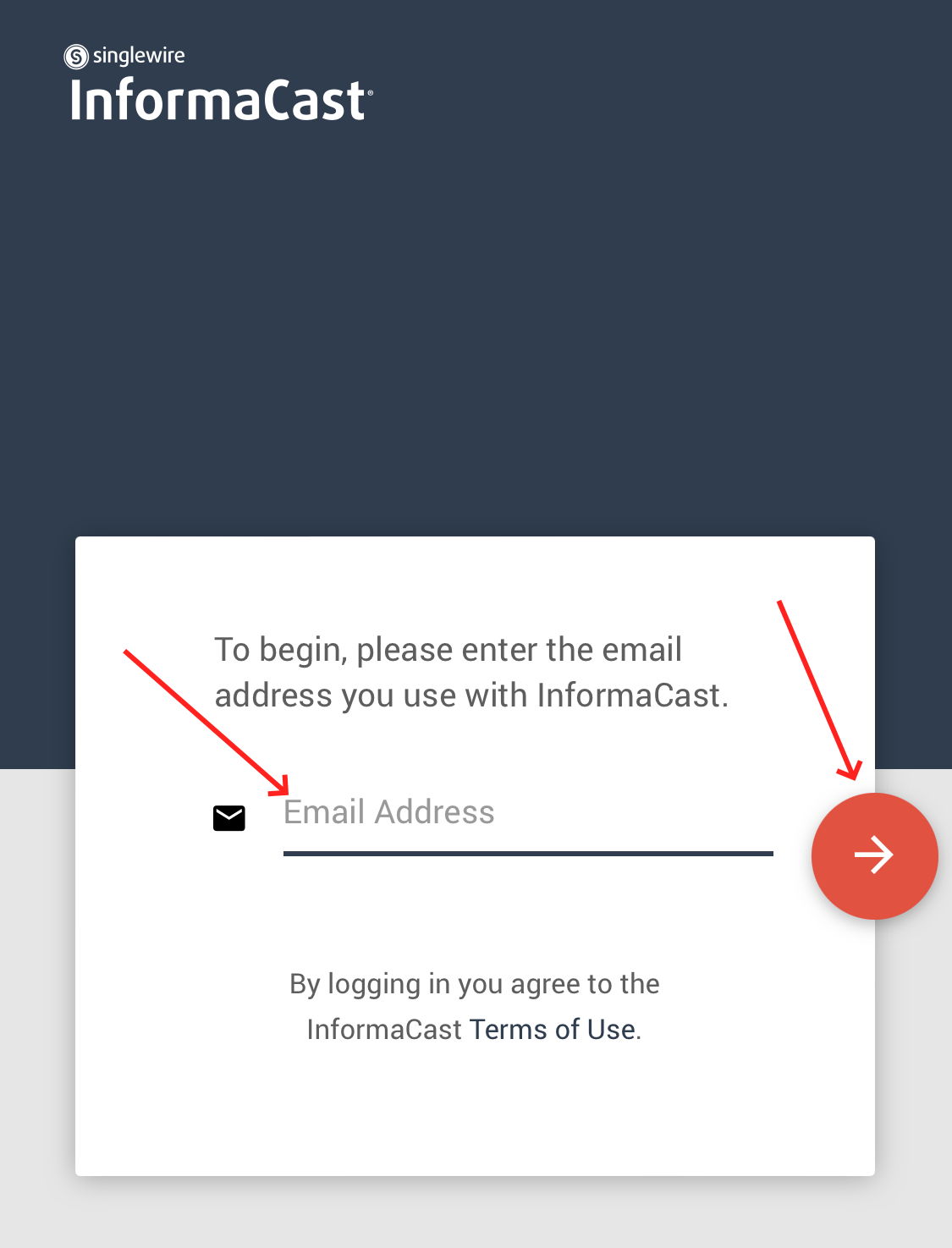](https://ccskb.calschools.org/uploads/images/gallery/2022-10/image-1666811455363.png) # Setup Information on setting up InformaCast Advanced and Mobile associations.