Caution: To associate an InformaCast Advanced messages with InformaCast Mobile Message Templates, the Advanced message must be set to "**Allow users to customize message at send time"**.
##### **Set Advanced Message to "Allow users to customize message at send time"** To verify/change this setting: - Select the message in InformaCast Advanced - Click on the **PREVIOUS** button in the lower right - [](https://ccskb.calschools.org/uploads/images/gallery/2022-11/image-1667390839918.png) - Check the **"Allow users to customize the message at send time"** checkbox - [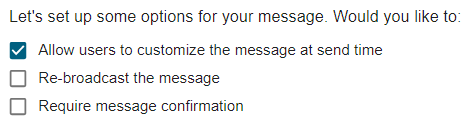](https://ccskb.calschools.org/uploads/images/gallery/2022-11/image-1667390920136.png) - To save the change - Click on the **COMPOSE MESSAGE** button in the lower right - Click on the **REVIEW MESSAGE** button in the lower right - Click on the **SAVE** button in the lower rightThe InformaCast Advanced message will now be available in the Set Custom InformaCast Advanced Messages setup
##### **Associate Advanced Message with Mobile Template** To associate an InformaCast Advanced message with with an InformaCast Mobile message template: - Login to InformaCast Advanced - Select **Endpoints** from the left menu - Select the **InformaCast Mobile** tile - Expand the **Set Custom InformaCast Advanced Messages** section - Click on the InformaCast Mobile message template - Select the InformaCast Advanced message to associate with from the message dropdown - Note: You may need to type a few characters of the message name for it to appear in the dropdown. - Click on the **SAVE** button to save the association