# Parent and Student Portals
# Troubleshooting Parent Portal as Parent/Guardian
**This article will show a few things to do to troubleshoot your parent portal account before contacting the school.**
1\. Make sure to use the username created, not your email address (your student name(s) is not your username).
2\. Use the forgot username or password button. The PowerSchool app doesn't work best for this - use the internet.
Tip: Search for email from PowerSchool in your email and check your spam folder.
3\. Sometimes the browser (especially Safari on iPhone) has issues. You can try accessing your account on a computer/chomebook or download Google Chrome on your iPhone.# How to Complete Forms in Parent and Student Portals
**This article will show how to view and complete forms in the Parent and Student Portals.**
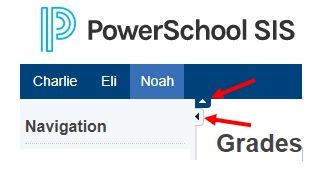
Helpful Tip: Click the arrows next to the navigation menu or header to close the menus.
[](http://ccskb.calschools.org/uploads/images/gallery/2021-06/image-1623768528873.png)
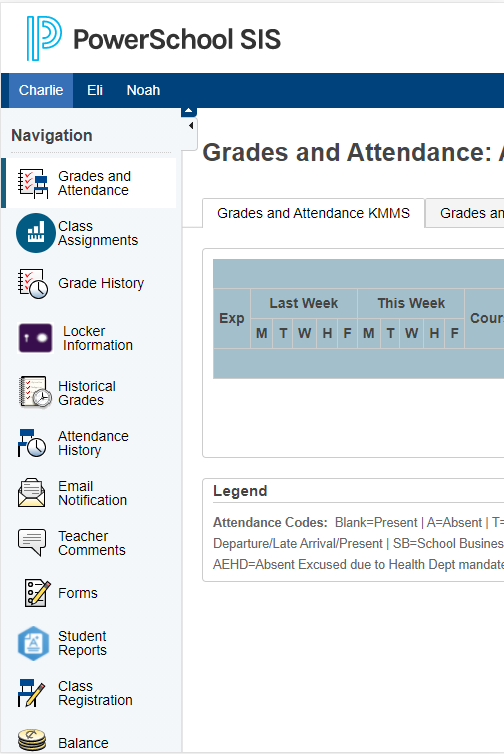
1\. Login to Portal. It will default to the Grades and Attendance page.
[](http://ccskb.calschools.org/uploads/images/gallery/2021-06/image-1623766971017.png)
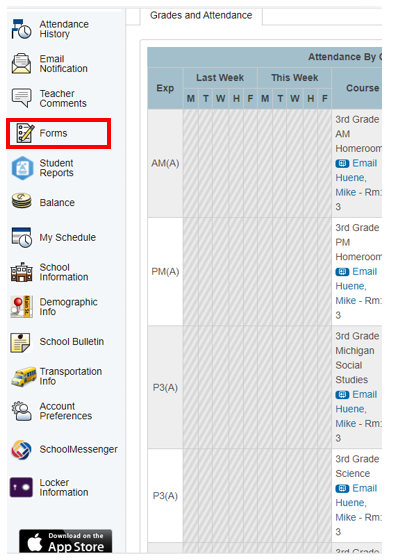
2\. Click "Forms" on the left side navigation menu.
[](http://ccskb.calschools.org/uploads/images/gallery/2021-06/image-1623775644917.png)
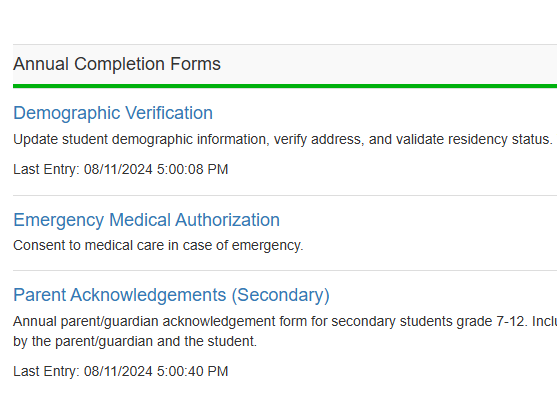
3\. A list of forms and other tabs will appear on the next page.
[](https://ccskb.calschools.org/uploads/images/gallery/2025-01/image-1737139765550.png)
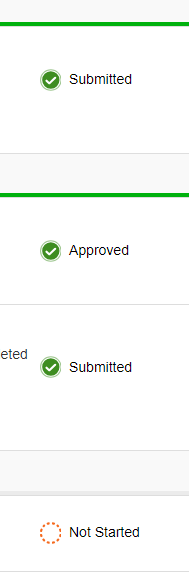
4\. The status column will show if the form is completed or not.
[](https://ccskb.calschools.org/uploads/images/gallery/2024-08/image-1723482390239.png)
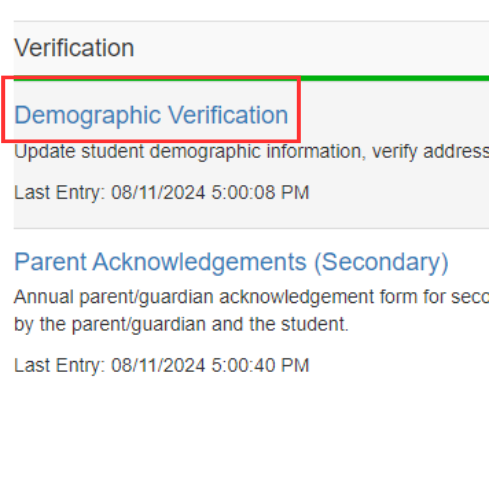
5\. Click on the Form Name to complete it.
[](https://ccskb.calschools.org/uploads/images/gallery/2024-08/untitled-design-1.png)
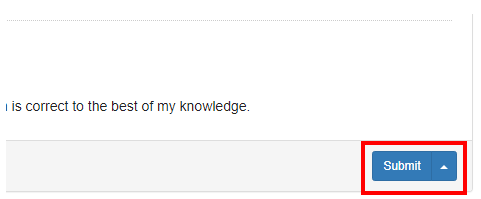
6\. Fill in the information and click "Submit".
[](http://ccskb.calschools.org/uploads/images/gallery/2021-06/image-1623775978008.png)# How to Update Email Address, Username and Password
**This article will show how to update email address, username, and password in Parent Portal.**
Helpful Tip:
Click the arrows next to the navigation menu or header to close the menus.
[](http://ccskb.calschools.org/uploads/images/gallery/2021-06/image-1623768528873.png)
1\. Login to Parent Portal. It will default to the Grades and Attendance page.
[](http://ccskb.calschools.org/uploads/images/gallery/2021-06/image-1623766971017.png)
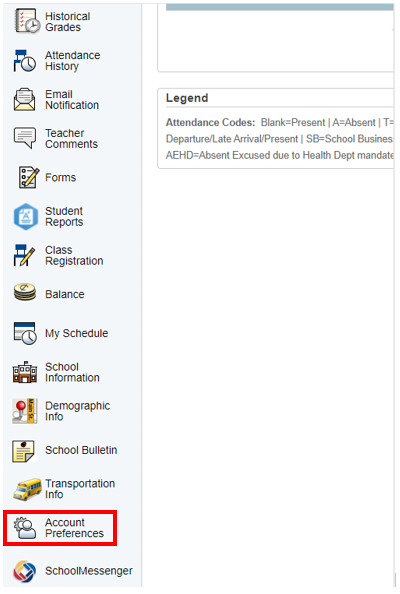
2\. Scroll down and click "Account Preferences" from the left side menu.
[](http://ccskb.calschools.org/uploads/images/gallery/2021-06/image-1623767046589.png)
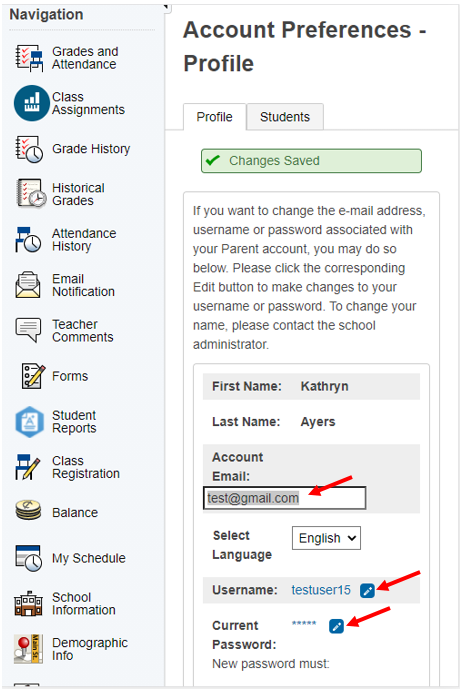
3\. Click which one to edit.
[](http://ccskb.calschools.org/uploads/images/gallery/2021-06/image-1623767429977.png)
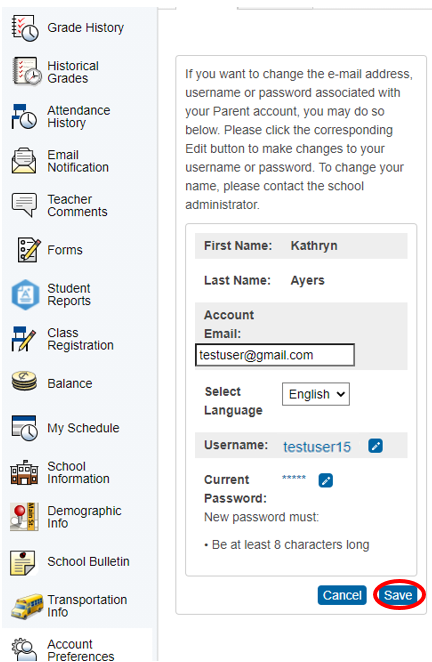
4\. Make changes and click "Save".
[](http://ccskb.calschools.org/uploads/images/gallery/2021-06/image-1623767624319.png)# How to Add Students to Parent Portal
**This article will show how to add students to a parent portal account.**
Helpful Tip:
Click the arrows next to the navigation menu or header to close the menus.
[](http://ccskb.calschools.org/uploads/images/gallery/2021-06/image-1623768528873.png)
1\. Login to Parent Portal. It will default to the Grades and Attendance page.
[](http://ccskb.calschools.org/uploads/images/gallery/2021-06/image-1623766971017.png)
2\. Scroll down and click "Account Preferences" from the left side menu.
[](http://ccskb.calschools.org/uploads/images/gallery/2021-06/image-1623767046589.png)
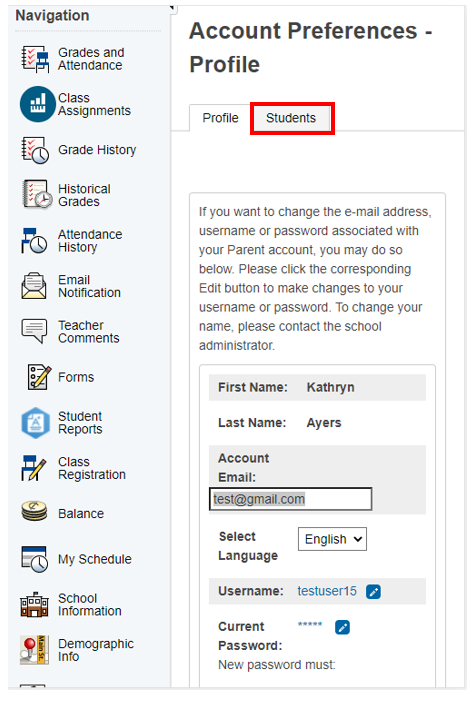
3\. Click the Students tab.
[](http://ccskb.calschools.org/uploads/images/gallery/2021-06/image-1623768040302.png)
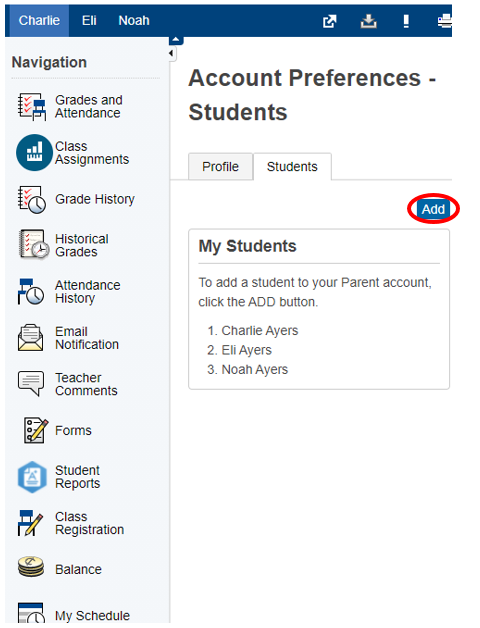
4\. Click "Add".
[](http://ccskb.calschools.org/uploads/images/gallery/2021-06/image-1623768121334.png)
5\. Enter the student information.
[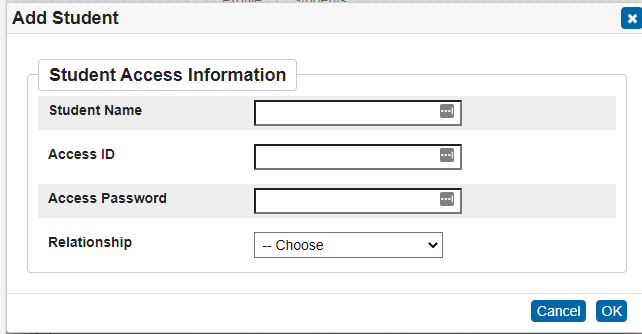](http://ccskb.calschools.org/uploads/images/gallery/2021-06/image-1623768152346.png)
6\. Click "OK".
[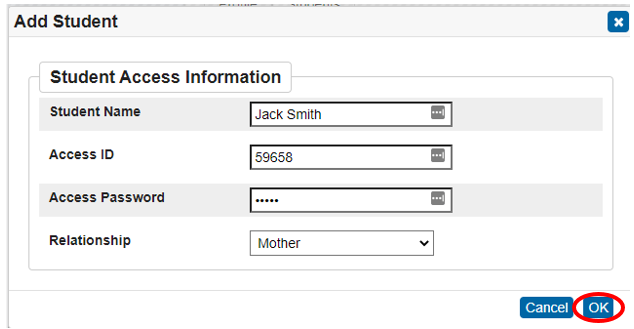](http://ccskb.calschools.org/uploads/images/gallery/2021-06/image-1623768268580.png)# How to View Student Grades
**This article will show how to view a student's grades in Parent and Student Portals.**
Helpful Tip:
Click the arrows next to the navigation menu or header to close the menus.
[](http://ccskb.calschools.org/uploads/images/gallery/2021-06/image-1623768528873.png)
1\. Login to Portal. It will default to the Grades and Attendance page.
[](http://ccskb.calschools.org/uploads/images/gallery/2021-06/image-1623766971017.png)
2\. Scroll down and over to see the student's grade and attendance information by class.
[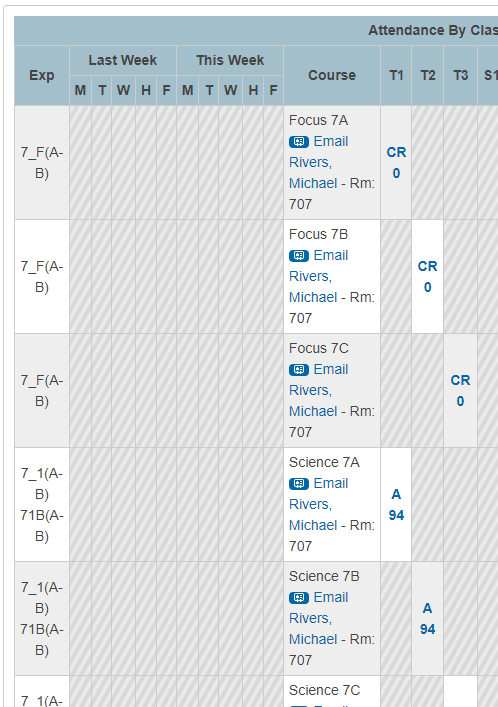](http://ccskb.calschools.org/uploads/images/gallery/2021-06/image-1623771290065.png)
3\. Click on a grade to see detail about it.
[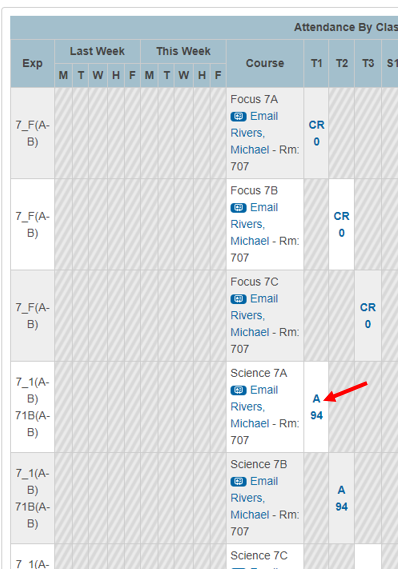](http://ccskb.calschools.org/uploads/images/gallery/2021-06/image-1623771472457.png)
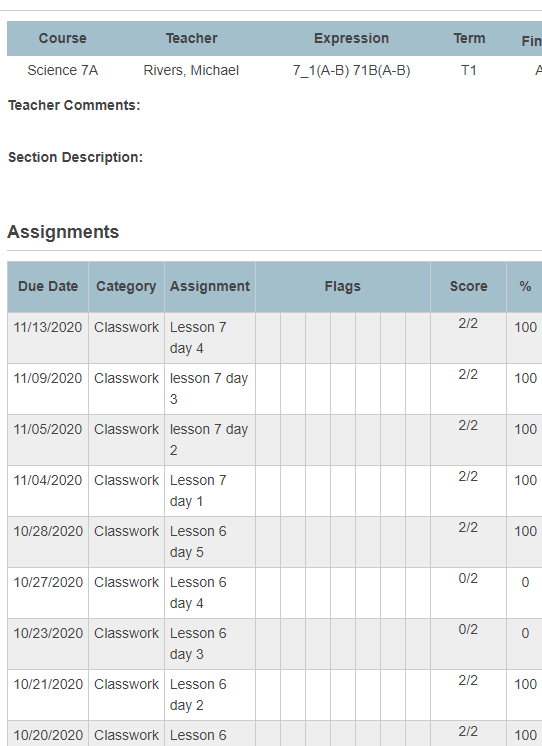
4\. A list of assignments for the class will appear with their individual grades.
[](http://ccskb.calschools.org/uploads/images/gallery/2021-06/image-1623771558112.png)
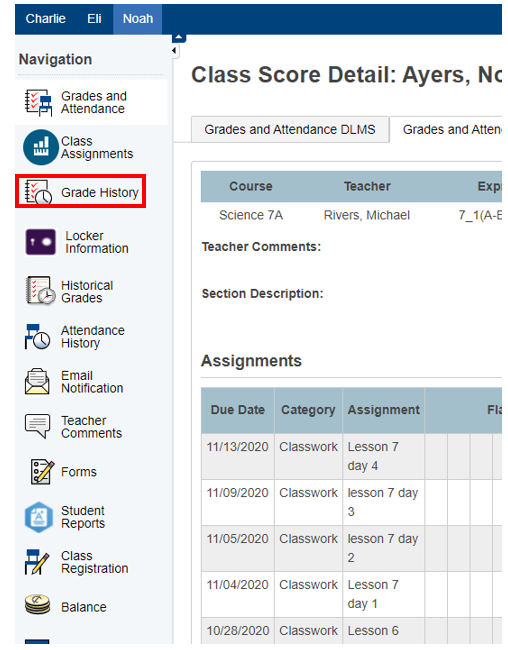
5\. Click "Grade History" in the left navigation menu to see a history of the student's grades for multiple school years.
[](http://ccskb.calschools.org/uploads/images/gallery/2021-06/image-1623771659249.png)
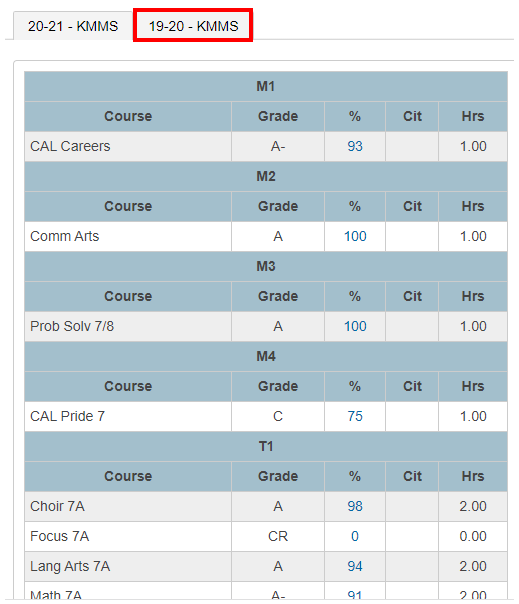
6\. Click the school year tab at the top to switch to a different school year.
[](http://ccskb.calschools.org/uploads/images/gallery/2021-06/image-1623771756912.png)
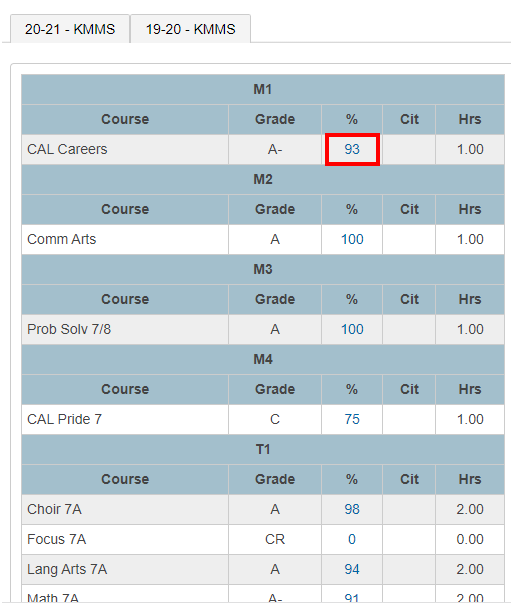
7\. Click on the grade in BLUE to see detail about it. This will bring up the same page that is in step #4.
[](http://ccskb.calschools.org/uploads/images/gallery/2021-06/image-1623771812875.png)# How to View Student Attendance
**This article will show how to view a student's attendance in Parent and Student Portals.**
Helpful Tip:
Click the arrows next to the navigation menu or header to close the menus.
[](http://ccskb.calschools.org/uploads/images/gallery/2021-06/image-1623768528873.png)
1\. Login to Portal. It will default to the Grades and Attendance page.
[](http://ccskb.calschools.org/uploads/images/gallery/2021-06/image-1623766971017.png)
2\. Scroll down to see the student's attendance information by class for the last two weeks.
[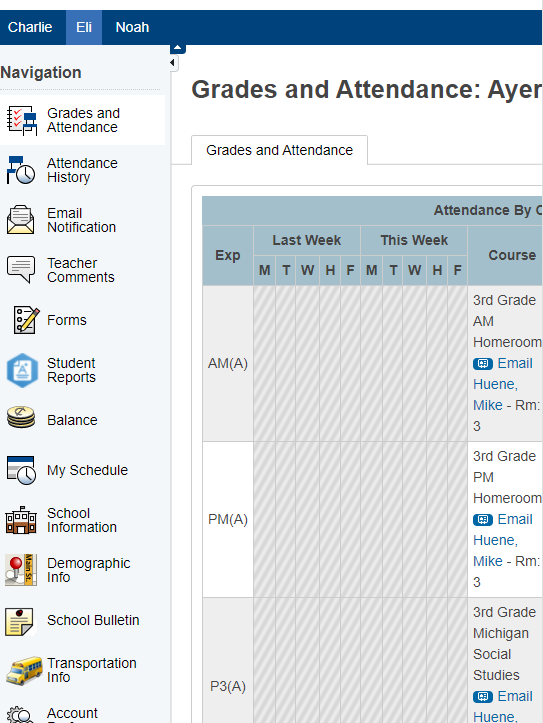](http://ccskb.calschools.org/uploads/images/gallery/2021-06/image-1623775031317.png)
3. Click "Attendance History" from the left side navigation menu.
[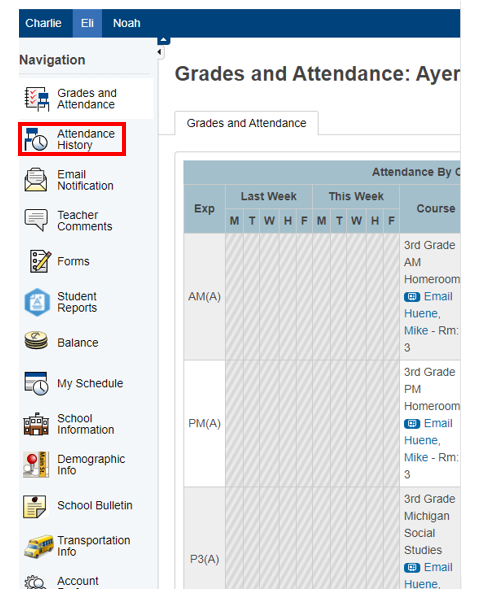](http://ccskb.calschools.org/uploads/images/gallery/2021-06/image-1623775080416.png)
4\. Attendance information by course will appear.
[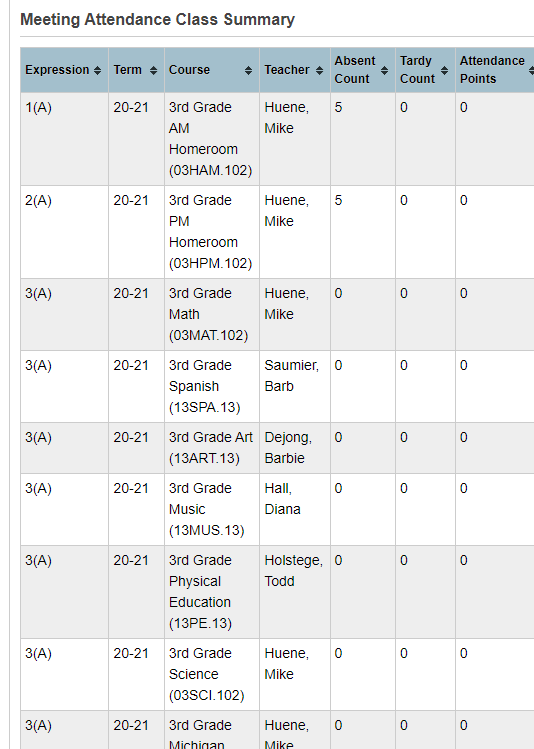](http://ccskb.calschools.org/uploads/images/gallery/2021-06/image-1623775123121.png)
Scroll down to see more.
[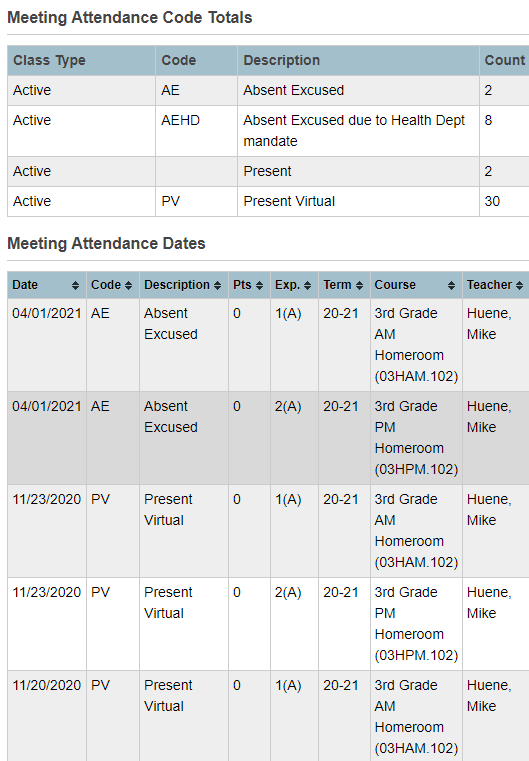](http://ccskb.calschools.org/uploads/images/gallery/2021-06/image-1623775165389.png)
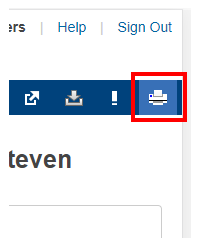
5. Click the Printer button in the top right to print this page.
[](http://ccskb.calschools.org/uploads/images/gallery/2021-06/image-1623775308146.png)
# How to View Student Locker Information
**This article will show how to view a student's locker information in the Parent and Student Portals.**
Helpful Tip:
Click the arrows next to the navigation menu or header to close the menus.
[](http://ccskb.calschools.org/uploads/images/gallery/2021-06/image-1623768528873.png)
1\. Login to Portal. It will default to the Grades and Attendance page.
[](http://ccskb.calschools.org/uploads/images/gallery/2021-06/image-1623766971017.png)
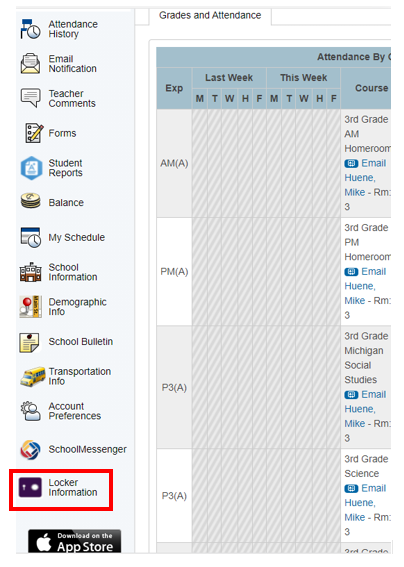
2\. Scroll down and click "Locker Information" from the left side navigation menu.
[](http://ccskb.calschools.org/uploads/images/gallery/2021-06/image-1623775493274.png)
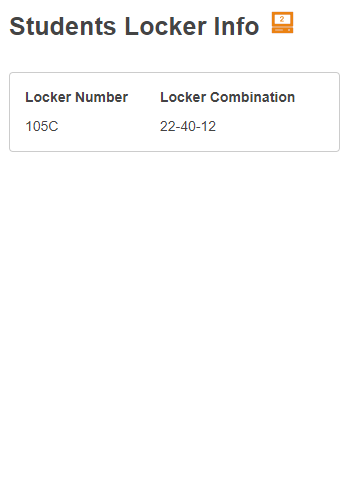
3\. The student's locker number and combination will appear on the next page.
[](http://ccskb.calschools.org/uploads/images/gallery/2021-06/image-1623775538807.png)# How to View Student Report Cards
**This article will show how to view a student's report card in the Parent and Student Portals.**
Helpful Tip:
Click the arrows next to the navigation menu or header to close the menus.
[](http://ccskb.calschools.org/uploads/images/gallery/2021-06/image-1623768528873.png)
1\. Login to Portal. It will default to the Grades and Attendance page.
[](http://ccskb.calschools.org/uploads/images/gallery/2021-06/image-1623766971017.png)
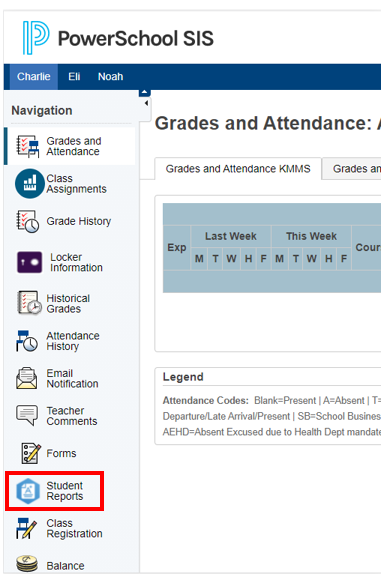
2\. Click "Student Reports" from the left side navigation menu.
[](http://ccskb.calschools.org/uploads/images/gallery/2021-06/image-1623776275707.png)
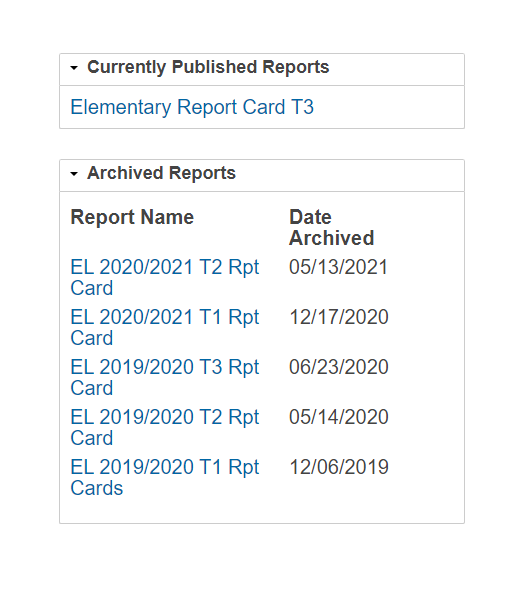
3\. A list of the student's report cards will appear.
[](http://ccskb.calschools.org/uploads/images/gallery/2021-06/image-1623776416752.png)
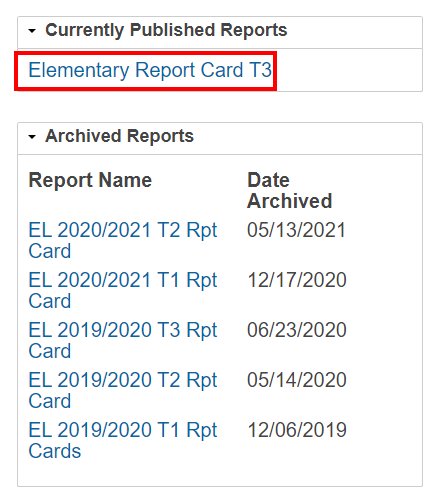
4\. Click on the Report Name to open it.
[](http://ccskb.calschools.org/uploads/images/gallery/2021-06/image-1623776456641.png)
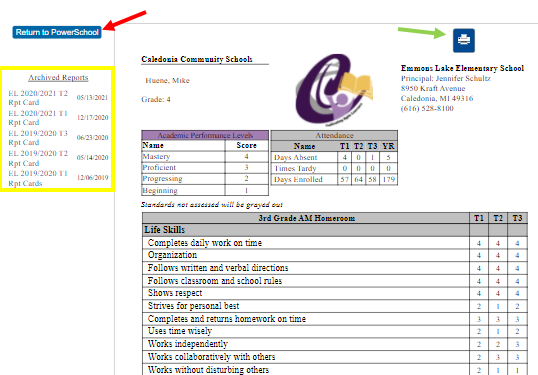
5\. The report will open.
**GREEN** arrow: click to print the report
**YELLOW** box: select another report to view
**RED** arrow: click to go back to the portal
[](http://ccskb.calschools.org/uploads/images/gallery/2021-06/image-1623776640729.png)# How to View and Add Funds to Student Account
**This article will show how to view the amount of money in a student's account and add more funds through the Parent and Student Portals.**
Helpful Tip:
Click the arrows next to the navigation menu or header to close the menus.
[](http://ccskb.calschools.org/uploads/images/gallery/2021-06/image-1623768528873.png)
1\. Login to Portal. It will default to the Grades and Attendance page.
[](http://ccskb.calschools.org/uploads/images/gallery/2021-06/image-1623766971017.png)
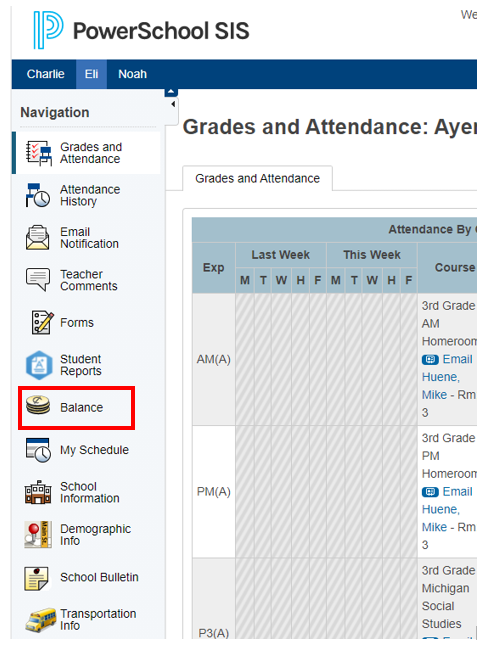
2\. Click "Balance" from the left side navigation menu.
[](http://ccskb.calschools.org/uploads/images/gallery/2021-06/image-1623777617651.png)
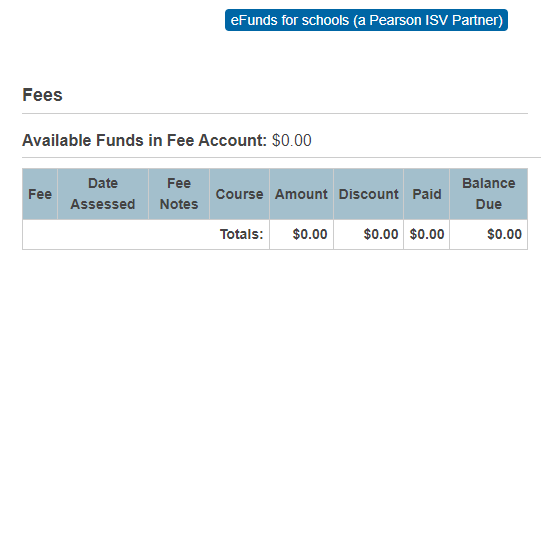
3\. A Fees page will appear with the student's available funds and recent fees.
[](http://ccskb.calschools.org/uploads/images/gallery/2021-06/image-1623784139956.png)
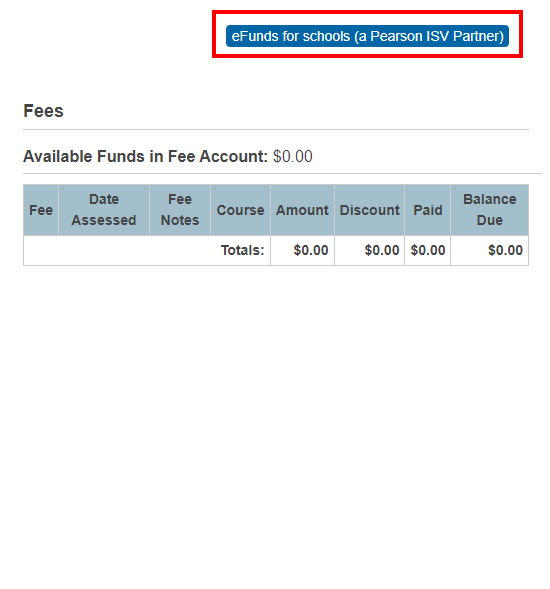
4\. Click the "eFunds for schools" button to add funds to the student's account.
[](http://ccskb.calschools.org/uploads/images/gallery/2021-06/image-1623784203822.png)
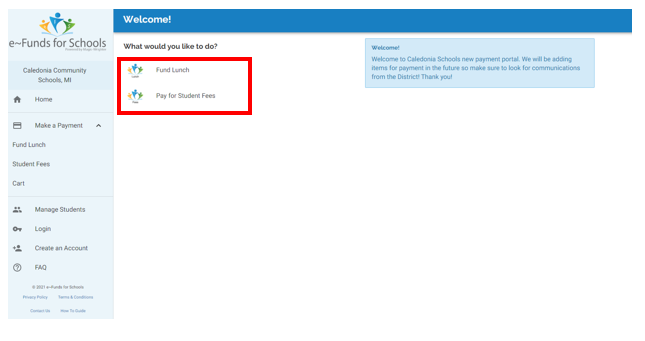
5\. The eFunds page will appear. Select whether to fund the student's lunch account or pay the student's fees.
[](http://ccskb.calschools.org/uploads/images/gallery/2021-06/image-1623784297958.png)# How to View Student Schedule
**This article will show how to view a student's schedule in Parent and Student Portals.**
Helpful Tip:
Click the arrows next to the navigation menu or header to close the menus.
[](http://ccskb.calschools.org/uploads/images/gallery/2021-06/image-1623768528873.png)
1\. Login to Portal. It will default to the Grades and Attendance page.
[](http://ccskb.calschools.org/uploads/images/gallery/2021-06/image-1623766971017.png)
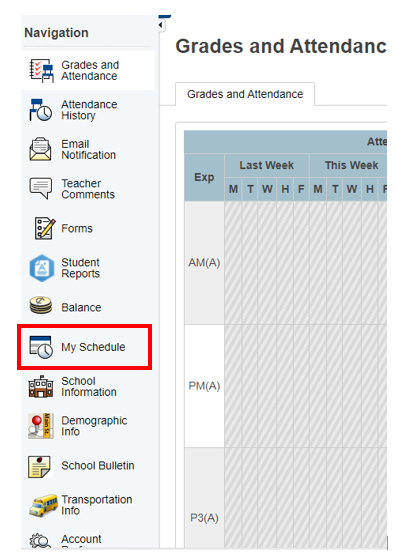
2\. Click "My Schedule" from the left side navigation menu.
[](http://ccskb.calschools.org/uploads/images/gallery/2021-06/image-1623784659257.png)
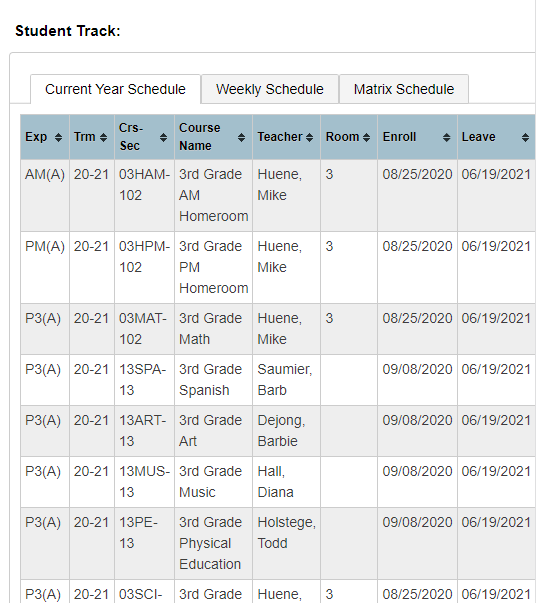
3\. The current year's schedule will show.
[](http://ccskb.calschools.org/uploads/images/gallery/2021-06/image-1623784699802.png)
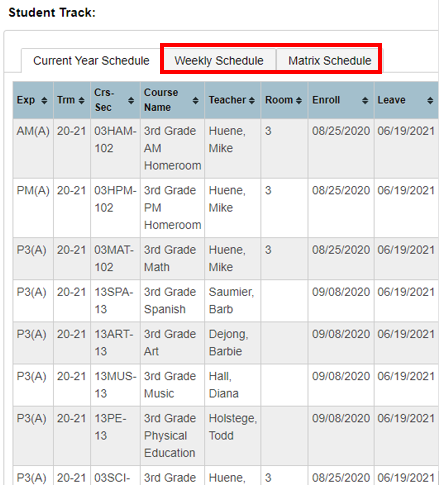
4\. To view the schedule in a weekly view or a matrix/chart view, click the tab at the top.
[](http://ccskb.calschools.org/uploads/images/gallery/2021-06/image-1623784751934.png)
5\. To print the page, click the Printer icon at the top.
[](http://ccskb.calschools.org/uploads/images/gallery/2021-06/image-1623784824188.png)# How to View Student Bus Information
**This article will show how to view a student's bus number and pickup/drop off times in Parent and Student Portals.**
Helpful Tip:
Click the arrows next to the navigation menu or header to close the menus.
[](http://ccskb.calschools.org/uploads/images/gallery/2021-06/image-1623768528873.png)
1\. Login to Portal. It will default to the Grades and Attendance page.
[](http://ccskb.calschools.org/uploads/images/gallery/2021-06/image-1623766971017.png)
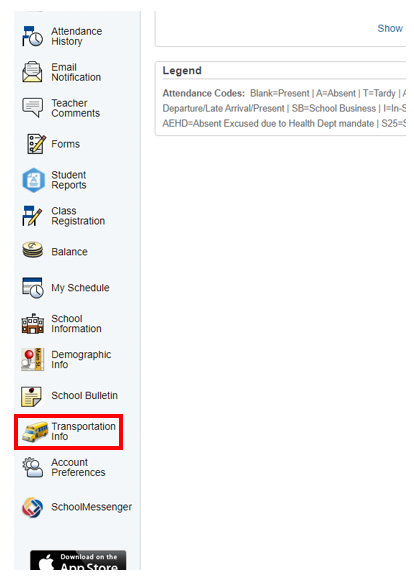
2\. Click "Transportation Info" from the left side navigation menu.
[](http://ccskb.calschools.org/uploads/images/gallery/2021-06/image-1623785061800.png)
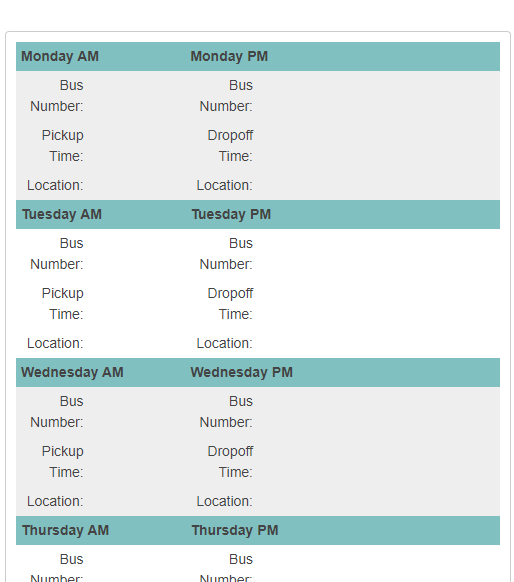
3\. The student's bus information will appear if they have any.
[](http://ccskb.calschools.org/uploads/images/gallery/2021-06/image-1623785108422.png)
4\. To print the page, click the Printer icon at the top.
[](http://ccskb.calschools.org/uploads/images/gallery/2021-06/image-1623784824188.png)# How to Find Help Resources for Parent and Student Portals
**This article will show how to find help resources for the Parent and Student Portals.**
Helpful Tip:
Click the arrows next to the navigation menu or header to close the menus.
[](http://ccskb.calschools.org/uploads/images/gallery/2021-06/image-1623768528873.png)
1\. Login to Portal. It will default to the Grades and Attendance page.
[](http://ccskb.calschools.org/uploads/images/gallery/2021-06/image-1623766971017.png)
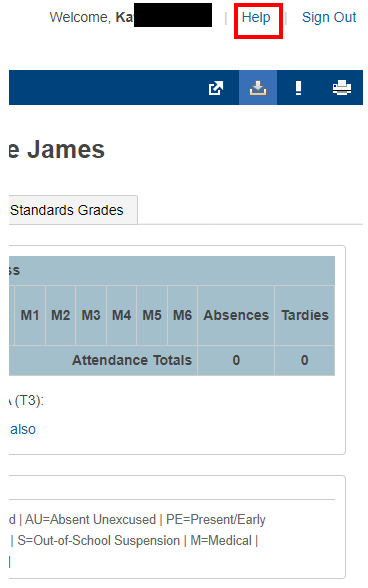
2\. Click the "Help" button at the top of the page.
[](http://ccskb.calschools.org/uploads/images/gallery/2021-06/image-1623785319697.png)
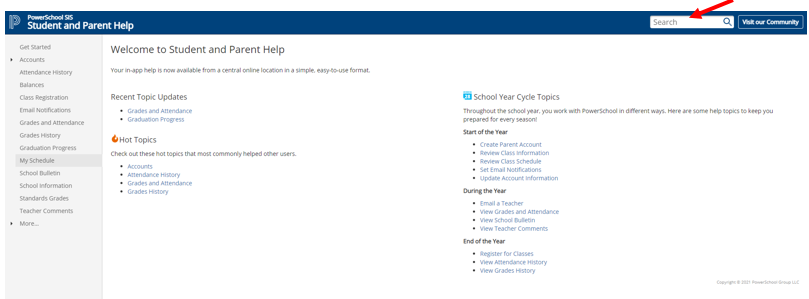
3\. The PowerSchool Student and Parent Help page will appear. Choose one of the topics on the left or use the search bar.
[](http://ccskb.calschools.org/uploads/images/gallery/2021-06/image-1623785410055.png)