# How to View Student Report Cards
**This article will show how to view a student's report card in the Parent and Student Portals.**
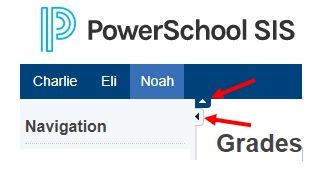
Helpful Tip:
Click the arrows next to the navigation menu or header to close the menus.
[](http://ccskb.calschools.org/uploads/images/gallery/2021-06/image-1623768528873.png)
1\. Login to Portal. It will default to the Grades and Attendance page.
[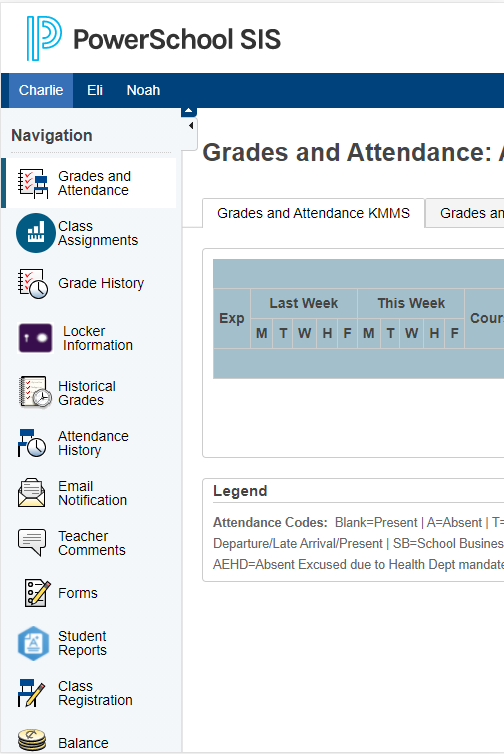](http://ccskb.calschools.org/uploads/images/gallery/2021-06/image-1623766971017.png)
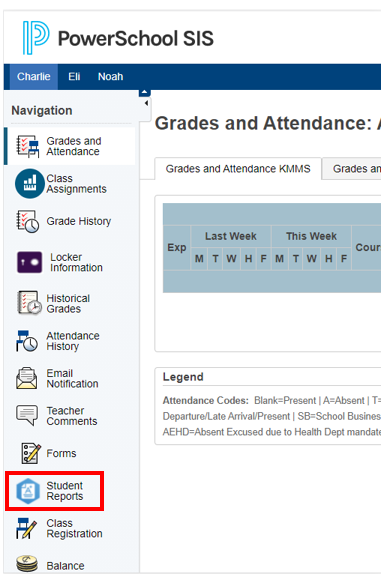
2\. Click "Student Reports" from the left side navigation menu.
[](http://ccskb.calschools.org/uploads/images/gallery/2021-06/image-1623776275707.png)
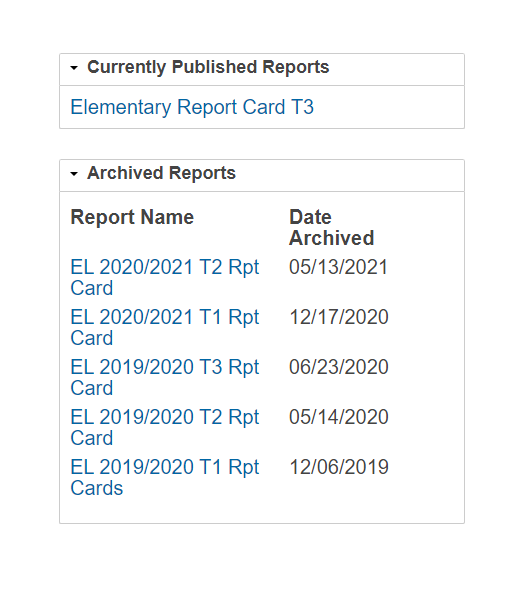
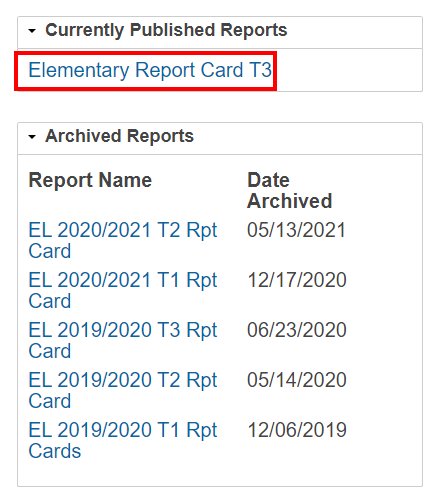
3\. A list of the student's report cards will appear.
[](http://ccskb.calschools.org/uploads/images/gallery/2021-06/image-1623776416752.png)
4\. Click on the Report Name to open it.
[](http://ccskb.calschools.org/uploads/images/gallery/2021-06/image-1623776456641.png)
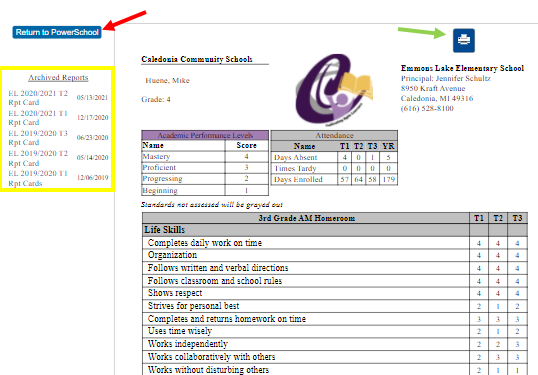
5\. The report will open.
**GREEN** arrow: click to print the report
**YELLOW** box: select another report to view
**RED** arrow: click to go back to the portal
[](http://ccskb.calschools.org/uploads/images/gallery/2021-06/image-1623776640729.png)